
Table of Contents >> Show >> Hide
- Why Table Captions Matter More Than People Think
- How to Add a Caption to a Table in Word: Step-by-Step
- What to Type in a Table Caption
- How to Customize a Table Caption in Word
- How to Keep Table Numbering Automatic
- How to Update Table Captions After Edits
- How to Edit an Existing Table Caption
- How to Cross-Reference a Table Caption
- How to Create a List of Tables in Word
- Best Practices for Writing Better Table Captions
- Accessibility Tips for Word Table Captions
- Common Problems and Easy Fixes
- Should You Add Captions to Every Table?
- Final Thoughts
- Real-World Experience: What Happens When You Actually Use Table Captions in Word
If you have ever spent twenty minutes building the perfect table in Microsoft Word, only to realize it now looks like a mysterious grid with zero explanation, welcome to the club. A table without a caption is like a movie without a title. Technically, it exists. Emotionally, it is confusing.
The good news is that Word makes it fairly easy to add a caption to a table. The even better news is that the built-in caption tool does more than slap a label above your chart of quarterly chaos. It can automatically number your tables, help you create cross-references, and make it much easier to build a polished list of tables later. In other words, this is one of those tiny Word features that quietly saves your sanity.
In this guide, you will learn exactly how to add a caption to a table in Word, how to format it, how to fix common problems, and how to use captions like a pro instead of a person negotiating with Word at 11:47 p.m.
Why Table Captions Matter More Than People Think
A table caption tells readers what they are looking at before they start decoding the rows and columns. That sounds simple, but it does several useful jobs at once. It adds context, improves navigation, supports accessibility, and keeps long documents from turning into a spreadsheet-themed scavenger hunt.
Captions also make Word smarter. When you use the built-in caption feature instead of typing “Table 1” manually, Word can automatically number each table in sequence. That means if you insert a new table near the top of the document, Word can update the numbering later instead of forcing you to renumber everything by hand like it is 1998.
This matters in business reports, school assignments, proposals, manuals, dissertations, case studies, and basically any document where tables carry real information. If your document has more than one table, captions stop being optional decoration and start becoming structure.
How to Add a Caption to a Table in Word: Step-by-Step
Method 1: Use the Ribbon
- Click anywhere inside the table you want to label.
- Go to the References tab in Word.
- Click Insert Caption in the Captions group.
- In the dialog box, choose Table from the Label drop-down menu.
- Choose the caption position, usually Above selected item or Below selected item.
- Type the descriptive text for your table after the automatic number.
- Click OK.
That is the core workflow. Word will insert something like Table 1 followed by your title. Clean, automatic, and much less dramatic than manually typing labels one by one.
Method 2: Use the Right-Click Shortcut
If your hand already lives on the mouse, there is a quicker route. Right-click the table and choose Insert Caption. You will land in the same caption dialog box and follow the same setup steps from there.
This shortcut is especially handy when you are moving quickly through a long document and do not want to keep bouncing back to the ribbon.
What to Type in a Table Caption
A strong table caption is short, specific, and helpful. It should tell readers what the table shows without making them read the entire surrounding paragraph first.
Good example: Table 2. Monthly Website Traffic by Channel
Less helpful example: Table 2. Data
Your caption does not need to write a novel. It just needs to identify the content clearly. Think of it as a headline for the table. If the table were separated from the page and taped to a wall, would the caption still explain what it is? If yes, you are doing great.
How to Customize a Table Caption in Word
Word gives you several useful options inside the caption dialog box, and this is where the feature goes from “nice” to “surprisingly powerful.”
Change the Label
By default, Word offers labels like Figure, Table, and Equation. For a table, choose Table. If you need a custom label, click New Label and create one. That can be useful in specialized documents where you want labels like Appendix Table, Exhibit, or Schedule.
Choose Where the Caption Appears
Word lets you place the caption above or below the table. In many professional and academic contexts, table titles often appear above the table, because readers can understand the content before scanning the data. Still, the best position depends on your document style guide, your company standard, or your instructor’s preference.
Adjust the Numbering
Click the Numbering button if you want to change the number format. You can switch to formats like 1, 2, 3 or A, B, C, and you can also include chapter numbers if your document uses heading-based chapter structure.
This is especially helpful in long reports. Instead of a generic “Table 9,” you might end up with “Table 3.2,” which tells readers it is the second table in Chapter 3. Fancy, organized, and slightly intimidating in a good way.
How to Keep Table Numbering Automatic
The golden rule is simple: do not type your table numbers manually if you want Word to help you later. Use the built-in caption feature every time.
When Word inserts a caption, it uses a field to generate the number. That is why the numbering can update across the document. If you add a new table earlier in the file, Word can recalculate the sequence when you update fields.
If you ever see something strange like a field code instead of a normal number, do not panic. Word is not haunted. It is just showing the underlying field code, and that can usually be toggled back to normal display.
How to Update Table Captions After Edits
Here is where many people get confused. Word will often update caption numbers automatically when you insert a new caption. But if you move or delete captions, the numbering may need a manual refresh.
To update all caption numbers in the document:
- Press Ctrl + A to select the whole document.
- Press F9, or right-click and choose Update Field.
This refreshes the fields in your file, including captions, cross-references, and other automated elements. It is one of the most useful keyboard habits in Word. Think of it as the “everyone get back in line” button.
How to Edit an Existing Table Caption
If you only need to change the descriptive text, click in the caption and edit it like normal text. Easy.
If you want to change deeper settings, such as the label type or numbering style, delete the caption and reinsert it using Insert Caption. That is usually cleaner than trying to manually rewrite parts of the automated field.
Also, avoid deleting just the number portion or editing the generated number by hand. That is how documents become moody.
How to Cross-Reference a Table Caption
Once your table has a proper caption, you can reference it elsewhere in the document without typing the number yourself. This is a huge win for long reports.
For example, instead of writing “see Table 4” and hoping Table 4 remains Table 4 forever, you can insert a cross-reference that updates with the caption.
Typical process:
- Place your cursor where you want the reference.
- Open Cross-reference in Word.
- Choose Table as the reference type.
- Select the table caption you want to reference.
- Choose whether to insert the full caption, just the label and number, or another reference option.
- Click Insert.
This is one of those features that makes a document feel professionally built instead of lovingly wrestled into existence.
How to Create a List of Tables in Word
If you have multiple table captions, Word can build a List of Tables automatically. This is incredibly useful for research papers, technical documentation, annual reports, and long-form business writing.
Here is the basic idea:
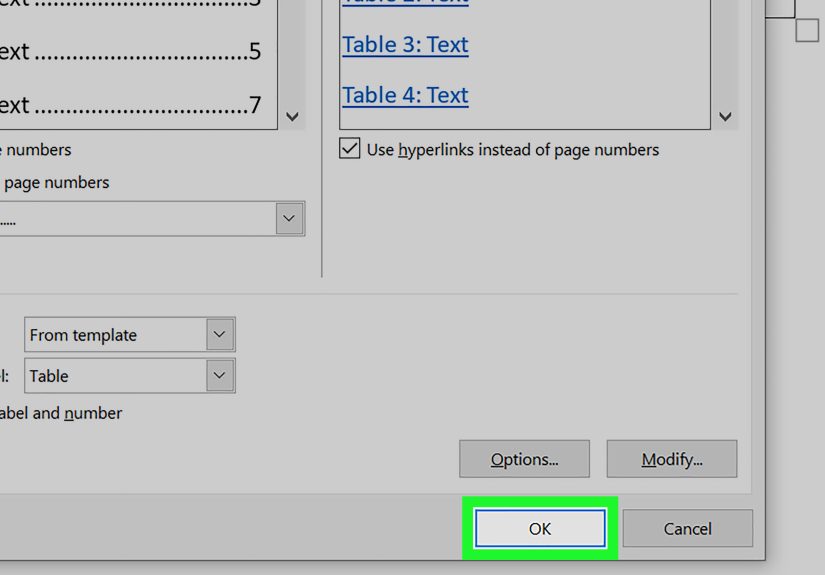
- Place your cursor where you want the list to appear.
- Go to the References tab.
- Choose Insert Table of Figures.
- Select the caption label Table.
- Choose your formatting options.
- Click OK.
Yes, Word calls it a “Table of Figures,” which is a little like storing socks in a drawer called “miscellaneous textiles,” but it works. Once your table captions are in place, Word can gather them into a usable list with page numbers. That saves an enormous amount of time compared with building the list manually.
Best Practices for Writing Better Table Captions
If you want your document to look polished instead of merely functional, a few habits make a big difference.
Be Descriptive, Not Wordy
A caption should explain what the table shows, not retell the entire section. Aim for clarity first.
Stay Consistent
Use the same punctuation, capitalization, and style across all table captions. If one caption starts with “Table 1. Sales by Region,” do not switch to “TABLE 2 – Revenue breakdown” three pages later unless your document enjoys costume changes.
Follow Your Required Style Guide
If you are writing for school, legal work, publishing, or corporate reporting, check the required formatting rules. Some style guides prefer captions above tables. Others may specify punctuation or title capitalization.
Use the Built-In Caption Style
Word applies a caption style automatically, and you can modify that style to keep all captions consistent. That is much smarter than manually changing the font on each caption one at a time.
Accessibility Tips for Word Table Captions
Good captions are not only about appearance. They also support readability and accessibility.
If your table contains real data, not layout formatting, try these habits:
- Use a clear caption that identifies the table’s purpose.
- Set a header row so readers and assistive technology can interpret the columns properly.
- Add alt text when the table needs a fuller description.
- Avoid overly complex merged and split cells when possible.
- Run Word’s Accessibility Checker before finalizing the document.
In plain English, the goal is to make the table understandable for everyone, not just for someone reading visually on a laptop in perfect lighting with unlimited patience.
Common Problems and Easy Fixes
The Caption Number Is Wrong
Select the entire document and update fields. In many cases, Word just needs a refresh.
The Caption Shows Weird Field Code Text
If you see something that looks more like computer logic than a caption, Word may be displaying field codes. Toggle the display and check again.
The Table Caption Does Not Match the Rest of the Document
Modify the Caption style instead of formatting each caption manually. That keeps all captions consistent and future edits much easier.
The Caption Moved Away from the Table
This usually happens after aggressive editing, spacing changes, or copy-paste adventures. Cut and paste the table with the caption carefully, and check paragraph spacing. If the object is floating, grouping and layout settings may also matter.
You Typed Table Numbers Manually
It happens. The fix is to replace the manual labels with real Word captions before the document gets any longer. Your future self will send a thank-you card.
Should You Add Captions to Every Table?
In a short memo with one tiny table, maybe not always. But in most documents where tables carry actual information, captions are worth adding. They improve navigation, support cross-references, and make the document more professional. Once you have more than one table, captions become a very smart habit.
And if you expect the document to grow, get reviewed, or be published, captions stop being “extra” and start being infrastructure.
Final Thoughts
Learning how to add a caption to a table in Word is one of those small skills that pays off far more than expected. The basic steps take less than a minute, but the long-term benefits are huge. You get automatic numbering, easier editing, cleaner formatting, better accessibility, easier cross-references, and the option to create a list of tables without losing your afternoon.
So yes, adding a caption may feel like a tiny task. But in Word, tiny tasks often decide whether your document feels polished and professional or like it barely survived a formatting thunderstorm.
If your document includes tables, use captions early, use them consistently, and let Word do the heavy lifting. For once, the software is actually trying to help.
Real-World Experience: What Happens When You Actually Use Table Captions in Word
In real-world writing, table captions often start as an afterthought and end up becoming one of the most valuable formatting decisions in the entire document. That is especially true when a file begins as a simple report and slowly evolves into a monster with revisions, new sections, comments, tracked changes, and at least one paragraph that somehow migrated to an incorrect page and refuses to explain itself.
One of the most common experiences people have is this: they build a clean table, type “Table 1” manually, move on, and assume the job is done. A week later, they insert another table near the beginning of the document. Suddenly the original Table 1 should now be Table 2, the old Table 2 should become Table 3, and every in-text reference is now wrong. That is usually the moment Word users discover that manual numbering is brave, optimistic, and completely unsustainable.
Once you switch to Word’s caption feature, the workflow changes dramatically. The document becomes easier to manage because the numbering is based on fields, not on wishful thinking. That matters a lot in collaborative environments. When multiple people edit the same proposal, thesis, white paper, or operations guide, tables move. They always move. Sometimes they move because the content changed. Sometimes they move because someone decided the margins “felt tight.” Either way, captions built with Word stand a much better chance of surviving the chaos.
Another common experience is that captions improve writing itself. When authors are forced to name a table clearly, they often realize the table is doing too much, saying too little, or using labels that are vague. A caption acts like a quality-control checkpoint. If it is hard to write a simple, specific caption, the table may not be organized well enough yet. That sounds minor, but it can improve clarity across the whole document.
There is also a surprisingly practical side to captions in review cycles. Editors, managers, instructors, and clients love being able to say “Please revise Table 4” instead of “that table near the middle after the paragraph about regional distribution but before the page break.” Captions give everyone a shared naming system. That saves time, reduces confusion, and lowers the odds of revising the wrong table, which is a real risk when several grids look similar.
People working on long academic papers often notice another benefit: once captions are in place, building a list of tables becomes almost effortless. Without captions, that final setup step can turn into a manual cleanup project full of page-number updates and tiny formatting headaches. With captions, Word can do most of the work. That feels less like magic and more like finally getting a refund from the formatting universe.
Accessibility is another area where practical experience matters. A descriptive table caption helps all readers, but it is especially useful in documents that may be converted to PDF, shared online, or reviewed with assistive technology. Teams that regularly produce public-facing or institutional documents quickly learn that captions, header rows, and table descriptions are not just nice extras. They are part of responsible document design.
Perhaps the biggest lesson from everyday use is simple: add captions early. Do not wait until the end of the document, when every table has already multiplied and the numbering situation resembles a small administrative crisis. Insert captions as you create tables. Keep the wording consistent. Update fields before final review. Those three habits prevent a ridiculous amount of cleanup later.
In short, the real experience of using table captions in Word is this: they seem small, they look ordinary, and they quietly save your document from a truly impressive amount of disorder.







 Close
Close