
Table of Contents >> Show >> Hide
- What Is a Minecraft PE Skin?
- Minecraft PE, Bedrock, and Mobile: Are They the Same?
- Before You Start: What You Need
- How to Change Your Skin in Minecraft PE on Mobile
- How to Import a Minecraft Skin on Android
- How to Import a Minecraft Skin on iPhone or iPad
- Classic Skins vs. Character Creator
- Why Your Minecraft PE Skin Will Not Import
- Best File Tips for Minecraft PE Skins
- Can You Use Custom Skins on Servers and Realms?
- Where to Find Good Minecraft PE Skins
- How to Make Your Own Minecraft PE Skin
- Troubleshooting: Quick Fixes That Usually Work
- Mobile Experience: What It Is Really Like Changing Skins in Minecraft PE
- Conclusion
- SEO Tags
Changing your skin in Minecraft PE is one of the fastest ways to make your character feel like yours. Sure, you can survive your first night looking like the default hero of the blocky universe, but where is the drama in that? A custom skin lets you show up as a knight, frog, astronaut, hoodie-wearing adventurer, anime-inspired explorer, or whatever pixel masterpiece your imagination can survive.
Today, Minecraft PE is generally known as Minecraft Bedrock Edition on mobile. Whether you play on Android or iPhone, the skin-changing process happens inside the Dressing Room. The menu can feel a little hidden if you are following older tutorials that mention a coat hanger icon or outdated “Profile” buttons, but the core idea is simple: download or create a valid skin PNG, open Minecraft, go to Classic Skins, import the image, choose the correct model, and equip it.
This guide explains exactly how to change your skin in Minecraft PE, how to import a custom skin on mobile, what file type you need, why some skins fail, and how to fix common Android and iOS problems without throwing your phone into lava.
What Is a Minecraft PE Skin?
A Minecraft skin is the image file that wraps around your player model. Think of it as a tiny pixel costume for your character. It does not change your abilities, your health, your inventory, or your legendary talent for falling into ravines. It only changes how your avatar looks in single-player worlds, Realms, servers, and multiplayer games where custom skins are allowed.
Most custom Minecraft skins are PNG image files. The common skin sizes are 64×64 pixels and 64×32 pixels. Many modern skins use the 64×64 format because it supports extra overlay layers, such as jacket sleeves, hats, hair details, and outer clothing. Older-style skins may use 64×32. Minecraft Bedrock on mobile usually expects a clean PNG skin file, not a screenshot, not a JPEG, and not a random image of a skin preview.
Minecraft PE, Bedrock, and Mobile: Are They the Same?
Players still say “Minecraft PE” because Pocket Edition was the classic name for Minecraft on phones and tablets. These days, the mobile version is part of Minecraft Bedrock Edition. That matters because many tutorials for Java Edition do not apply to mobile. In Java Edition, players usually upload skins through their Minecraft profile. In Minecraft PE on Android and iOS, you normally change skins inside the game’s Dressing Room.
So if you are searching for “how to change Minecraft PE skin,” “how to import skin in Minecraft mobile,” or “how to add custom skin Minecraft Bedrock mobile,” you are usually looking for the same process.
Before You Start: What You Need
Before importing a custom skin, prepare these basics:
- A working copy of Minecraft on your Android phone, iPhone, or tablet
- A skin PNG file saved to your device
- Access to your Photos, Gallery, Files, or Downloads folder
- A stable game version updated from the App Store or Google Play
- A little patience, because mobile file pickers sometimes behave like confused villagers
The most important part is the skin file. If you download a skin from a skin library, make sure you save the actual flat PNG skin, not the preview image. The correct file usually looks like a strange unfolded character map with tiny body parts arranged on a transparent or colored background. If the image looks like a full 3D character posing for a yearbook photo, that is probably not the import file.
How to Change Your Skin in Minecraft PE on Mobile
Step 1: Download or Create a Custom Skin
First, choose the skin you want. You can download one from a Minecraft skin website, use a mobile skin editor, or create your own pixel-by-pixel design. Popular skin ideas include medieval warriors, cottagecore outfits, creeper hoodies, school uniforms, superheroes, animals, fantasy mobs, and original characters.
When downloading, tap the option that says something like Download, Save Skin, or Download PNG. On iPhone, the file may save to Photos or Files. On Android, it may save to Downloads, Gallery, or a folder created by your browser. Remember where it goes. Minecraft will ask you to find it later, and “somewhere in my phone” is unfortunately not a folder name.
Step 2: Open Minecraft on Your Phone
Launch Minecraft and wait for the main menu to load. You should see your current character standing on the screen. Under or near the character, look for the Dressing Room button. Older guides may call this area “Profile,” “Skins,” or show a coat hanger icon, but the current mobile flow usually uses Dressing Room.
Step 3: Enter the Dressing Room
Tap Dressing Room. This is where Minecraft stores your character slots, Marketplace skins, Character Creator outfits, capes, and classic imported skins. You may see several character slots. Pick the character you want to change, or create a new slot if you want to keep your current look saved.
Step 4: Choose Classic Skins
Inside the editor, look for Classic Skins. This is the section for traditional flat PNG skins. Do not confuse it with Character Creator. Character Creator lets you build a player using body parts, hairstyles, clothing, and accessories. Classic Skins is where you import the full skin image.
If you only want to use a Marketplace skin pack, you can select one from your owned content. But if your goal is to import a custom Minecraft PE skin from your phone, stay in Classic Skins.
Step 5: Tap Owned Skins and Choose New Skin
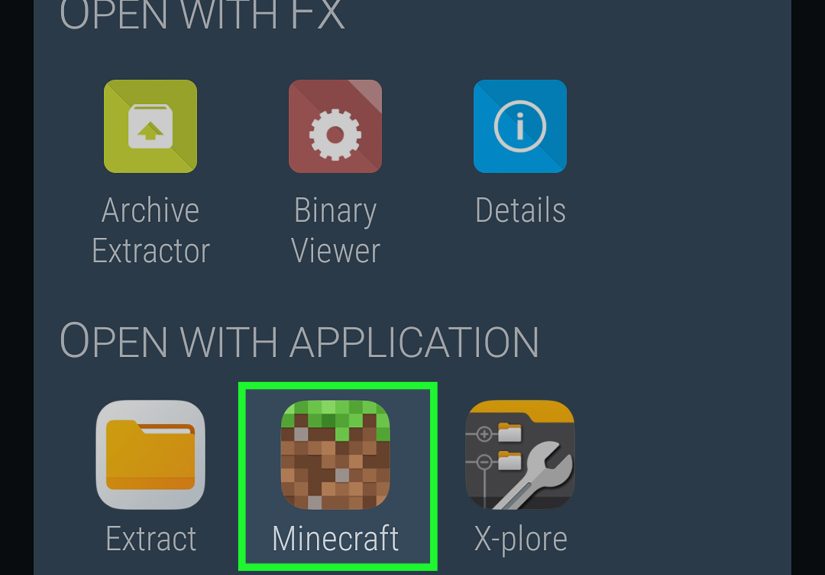
In Classic Skins, find the Owned Skins area. Look for a blank skin icon or an import option. Tap Choose New Skin. Minecraft will open your phone’s file picker, gallery, or photo browser.
Now select the PNG skin file you saved earlier. If you cannot find it, check Downloads, Recents, Photos, Files, or your browser’s download folder. On Android, using the Files app instead of the Gallery may help if Minecraft refuses to recognize the image.
Step 6: Pick the Correct Model
After selecting the PNG, Minecraft may ask you to choose a model. You will usually see two options: a wider model and a slimmer model. Players often call these Steve and Alex models.
The difference is the arm width. Steve-style skins use wider arms, while Alex-style skins use slimmer arms. If your character’s sleeves look stretched, chopped, or weirdly muscular, you probably picked the wrong model. Go back and import again with the other option. Your skin is not haunted; it is just wearing the wrong arms.
Step 7: Confirm and Equip the Skin
Once the preview looks right, confirm your choice. The skin should now appear on your character. Exit back to the main screen and check your avatar. If the new look appears, congratulations. You have successfully changed your Minecraft PE skin on mobile.
Start a world or join a server to test it in action. Some servers may restrict custom skins or show default skins depending on settings, connection, or platform rules. If your skin appears correctly on the home screen but not in multiplayer, the issue may be server-side rather than your file.
How to Import a Minecraft Skin on Android
The Android process is flexible but can vary depending on your device brand, Android version, browser, and file manager. Here is the easiest approach:
- Download a Minecraft skin PNG to your phone.
- Open Minecraft.
- Tap Dressing Room.
- Select or create a character slot.
- Go to Classic Skins.
- Open Owned Skins.
- Tap Choose New Skin.
- Select the PNG from Downloads, Gallery, or Files.
- Choose the correct model.
- Equip the skin.
If Android says the file is not valid, confirm that the image is actually a PNG and not a WebP, JPG, or preview thumbnail. Some browsers save images in unexpected formats. Try opening the image details, renaming is not enough, and downloading the skin again from a proper “Download PNG” button.
How to Import a Minecraft Skin on iPhone or iPad
On iOS, the process is similar, but the file location matters. Some skins save to the Photos app, while others save to the Files app. If Minecraft opens Photos and your skin is in Files, or the other way around, it can feel like the skin vanished into the Nether.
- Download the skin PNG using Safari or another browser.
- Save it to Photos or Files.
- Open Minecraft.
- Tap Dressing Room.
- Select the character slot you want to edit.
- Choose Classic Skins.
- Tap the blank skin under Owned Skins.
- Select Choose New Skin.
- Pick the PNG file from your device.
- Choose the model and confirm.
If the skin does not appear in Photos, open the Files app and move or save the PNG to a more obvious location. You can also try sharing the image to Photos, then importing again from Minecraft.
Classic Skins vs. Character Creator
Minecraft mobile gives you two major ways to change your look: Classic Skins and Character Creator.
Classic Skins
Classic Skins are full PNG files. They are perfect if you want a specific design from a skin editor, a skin website, or your own custom artwork. This is the best option for players who want a precise look.
Character Creator
Character Creator lets you build a custom character using in-game items, clothing, hairstyles, eyes, mouths, and accessories. Some items are free, while others come from Marketplace purchases or unlocks. It is beginner-friendly, but it does not give the same pixel-perfect control as importing a custom PNG.
Use Character Creator if you want quick customization. Use Classic Skins if you want full control.
Why Your Minecraft PE Skin Will Not Import
If Minecraft rejects your skin, one of these problems is usually the culprit:
- The file is not a PNG.
- The skin dimensions are wrong.
- You selected a preview image instead of the actual skin file.
- The file was damaged during download.
- The image is stored in a folder Minecraft cannot access.
- The game needs an update.
- The mobile file picker is bugging out.
The fastest fix is to download a fresh 64×64 PNG skin from a reliable skin library, save it to an easy folder, restart Minecraft, and import again. If that works, your original file was the problem.
Best File Tips for Minecraft PE Skins
For the smoothest import, follow these file tips:
- Use PNG format only.
- Choose 64×64 for modern skins when possible.
- Avoid screenshots of skins.
- Do not crop the skin image.
- Do not apply photo filters or compression.
- Keep the file name simple, such as my-minecraft-skin.png.
- Save the file somewhere easy to find.
A Minecraft skin is not a normal picture. It is a texture map. Every little square has a job. If you crop it, resize it badly, or save it through an app that changes the format, Minecraft may look at it and say, “Absolutely not, bestie.”
Can You Use Custom Skins on Servers and Realms?
In many cases, yes. If your skin is properly imported and the server allows custom skins, other players should see it. However, some servers, parental controls, platform rules, or account settings may affect what appears. If everyone looks like Steve or Alex, the issue may not be your skin. It may be the server, connection, or skin visibility settings.
Also remember that imported custom skins on Bedrock mobile may not always sync perfectly across every platform. A skin you import on your phone may work on that phone, but that does not guarantee it will appear the same way on a console. Marketplace skins and account-owned content generally travel more reliably than locally imported PNG files.
Where to Find Good Minecraft PE Skins
You can find Minecraft skins on popular skin libraries, community galleries, mobile skin apps, and skin editors. Look for sites or apps that clearly provide a PNG download and show the flat skin layout. Many players also use online editors to adjust hair, hoodie colors, shoes, gloves, shading, and accessories before downloading.
Be careful with random downloads. A normal skin should be a small PNG image. You do not need to install suspicious apps, enter your Microsoft account password on random websites, or download strange executable files. If a site asks for too much personal information just to download a skin, back away slowly like you have spotted a charged creeper.
How to Make Your Own Minecraft PE Skin
If you want something original, use a Minecraft skin editor. A good editor lets you paint directly on the head, body, arms, and legs. Start with a base color, then add shading. For example, if you are making a red hoodie skin, use a medium red for the base, darker red under the arms, and lighter red on the chest and shoulders. This creates depth without making the skin look muddy.
For faces, keep it simple. Two eyes and a little contrast go a long way. For hair, use several shades instead of one flat color. For clothing, add small details like cuffs, drawstrings, belts, shoes, patches, or backpack straps. Minecraft skins are tiny, so every pixel matters. One misplaced pixel can turn a stylish eyebrow into a mysterious forehead bug.
Troubleshooting: Quick Fixes That Usually Work
Restart Minecraft
If the skin does not show after importing, close Minecraft completely and reopen it. Mobile apps sometimes need a fresh launch before changes appear correctly.
Update the App
Go to Google Play or the App Store and check for updates. Dressing Room bugs are more likely on outdated versions.
Try a Different File Location
Move the PNG to Downloads, Photos, or Files. Then try importing again. Sometimes Minecraft can access one folder but not another.
Use a Different Skin
Download a simple 64×64 test skin and import it. If that works, your original skin file is damaged or incorrectly formatted.
Check the Model
If the skin imports but looks strange, switch between slim and wide models. The wrong arm type is a common cause of awkward-looking skins.
Mobile Experience: What It Is Really Like Changing Skins in Minecraft PE
Changing your skin in Minecraft PE sounds simple, and most of the time it is. But the first time you do it on mobile, the process can feel oddly dramatic. You download a skin, open Minecraft with confidence, tap Dressing Room, and then suddenly you are digging through folders you did not know existed. Is the skin in Photos? Files? Downloads? Recent? Why does the same image appear three times? Why is one of them a preview and one the actual PNG? Welcome to the mobile skin-import adventure.
The best experience comes when you treat skin importing like organizing a tiny digital closet. Create a folder for Minecraft skins, keep your favorite PNG files there, and rename them clearly. Instead of leaving files named “download_47291_final_REAL.png,” use names like “blue-hoodie-skin.png” or “frog-knight-64×64.png.” It sounds boring until you have twenty skins and no idea which one is the duck wearing sunglasses.
On Android, the biggest lesson is that not every image picker behaves the same way. Sometimes Gallery works perfectly. Other times, Minecraft prefers the Files app. If your skin refuses to import from one place, move it to Downloads and try again. Also, be careful when downloading from browsers that convert images into WebP format. Minecraft wants a real PNG skin, not a modern web image wearing a fake mustache.
On iPhone, the main trick is knowing whether the skin went to Photos or Files. Safari may ask where to save the download. If the image opens in a browser tab, press and hold carefully and save the actual image. If you accidentally save a preview, Minecraft may reject it or import something that looks completely wrong. A proper skin file looks flat and strange, almost like a character was folded into a pixel blueprint. That weird little blueprint is exactly what you want.
Another useful habit is testing skins in a creative world before joining a server. Load into a world, switch to third-person view, and check the front, back, arms, and legs. Walk around. Sneak. Jump. Spin like you just found diamonds. This helps you catch problems such as backward details, missing sleeves, mismatched shoes, or the classic “why is my face on my hat layer?” situation.
For players who love roleplay, skins can make the game more immersive. A farmer skin fits a cozy survival world. A space suit works beautifully for sci-fi builds. A medieval skin makes castle projects feel more alive. Even a simple hoodie skin can make multiplayer feel more personal because friends recognize you instantly. In a game where everyone can technically build the same dirt hut, your skin becomes your signature.
The final experience-based tip is to keep backups. If you edit your own skin, save multiple versions. One version might have a red jacket, another might have armor, and another might be your “server event” outfit. Custom skins are small files, so storing backups is easy. Losing your favorite skin after finally getting the shading right is a tragedy worthy of sad Minecraft piano music.
Once you understand the flow, importing skins on mobile becomes quick. Download the PNG, open Dressing Room, choose Classic Skins, import through Owned Skins, select the model, and equip. After that, changing your Minecraft PE skin is less of a mystery and more of a routine. A stylish, blocky routine.
Conclusion
Changing your skin in Minecraft PE is one of the easiest ways to personalize your mobile gameplay. The key is using the right menu and the right file. Open Dressing Room, choose Classic Skins, go to Owned Skins, tap Choose New Skin, select a valid PNG, pick the correct model, and equip it. That is the whole recipe, no crafting table required.
If something goes wrong, do not panic. Most skin problems come from the wrong file format, wrong image dimensions, damaged downloads, confusing mobile folders, or choosing the wrong model. Download a fresh PNG, move it somewhere easy to find, restart Minecraft, and try again. Once you get the hang of it, swapping skins becomes as easy as changing armor before a boss fight.
Note: Minecraft menus may change slightly after updates, but the current mobile skin-import path is centered around Dressing Room, Classic Skins, Owned Skins, and Choose New Skin. If an older tutorial mentions a coat hanger icon or a different menu name, use the closest current Dressing Room option instead.





 Close
Close