
Table of Contents >> Show >> Hide
- Why the Sony WF-1000XM4 Can Be Confusing to Pair
- How to Pair Sony WF-1000XM4 for the First Time
- How to Pair Sony WF-1000XM4 with Android
- How to Pair Sony WF-1000XM4 with iPhone
- How to Pair Sony WF-1000XM4 with Windows
- How to Pair Sony WF-1000XM4 with Mac
- How to Pair Sony WF-1000XM4 with a Second Device
- Best Troubleshooting Tips When Sony WF-1000XM4 Won’t Pair
- 1. Put the earbuds back in the case and start over
- 2. Delete old pairing records from your device
- 3. Restart the phone or computer
- 4. Keep the device close during pairing
- 5. Make sure the case has enough charge
- 6. Update the firmware in Sony’s companion app
- 7. Check the audio output device on Windows or Mac
- 8. Avoid selecting the wrong Bluetooth listing
- How to Reset Sony WF-1000XM4
- How to Initialize Sony WF-1000XM4 to Factory Defaults
- Common Sony WF-1000XM4 Pairing Problems and Quick Fixes
- Real-World Tips to Make Pairing Less Annoying
- Experiences Related to Pairing Sony WF-1000XM4: What Users Usually Run Into
- Final Thoughts
If your Sony WF-1000XM4 earbuds are refusing to pair, acting mysterious, or behaving like they’re too famous to connect with your phone, take a deep breath. These earbuds are excellent, but like many Bluetooth gadgets, they occasionally need a little encouragement. The good news is that pairing them is usually quick once you know the right sequence. The even better news is that most connection problems have simple fixes that do not require a spiritual cleansing, a hammer, or a dramatic speech.
This guide walks you through how to pair Sony WF-1000XM4 earbuds with Android, iPhone, Windows, and Mac, plus what to do when they are not showing up, not reconnecting, or stubbornly clinging to an old device. You will also find practical troubleshooting tips, real-world examples, and a longer experience section at the end to help make the process feel much less annoying.
Why the Sony WF-1000XM4 Can Be Confusing to Pair
The Sony WF-1000XM4 does not have the giant obvious pairing button that some earbuds use. Instead, it relies on a few different pairing behaviors depending on whether you are connecting for the first time, reconnecting to a device you already used, or adding a second device. That is where many people get tripped up.
Here is the simple version:
- For first-time pairing, the earbuds usually enter pairing mode automatically when you remove them from the case.
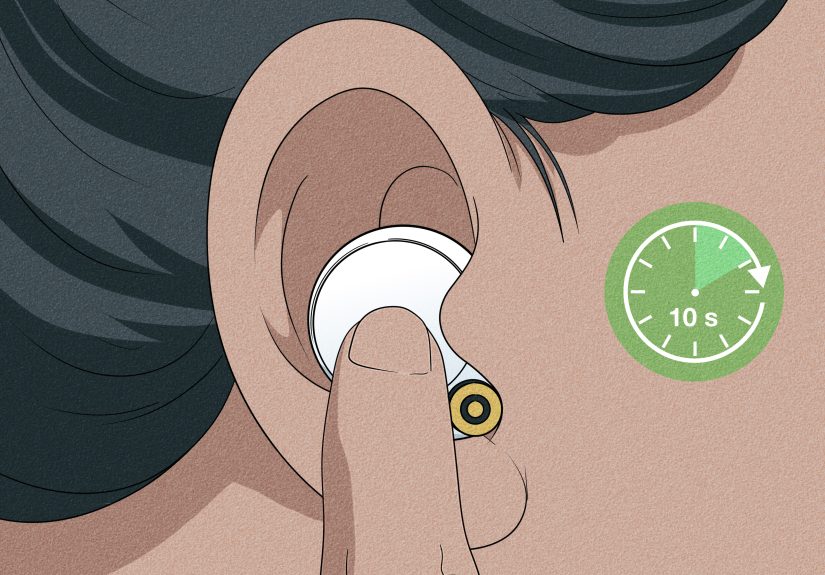
- For pairing with a new device later, you normally need to wear both earbuds and touch both sensors for several seconds until you hear the pairing prompt.
- If pairing still fails, deleting old Bluetooth records, resetting the earbuds, or fully initializing them often solves the issue.
In other words, the earbuds are smart, but occasionally they are a little too confident. They assume they know what you want, and sometimes they assume wrong.
How to Pair Sony WF-1000XM4 for the First Time
Step 1: Charge the earbuds and case
Before doing anything else, make sure the charging case has enough battery and the earbuds are seated properly. Low battery can interrupt pairing and make troubleshooting harder than it needs to be.
Step 2: Remove both earbuds from the charging case
When the Sony WF-1000XM4 is being paired for the first time, or right after a factory-style initialization, the earbuds typically enter Bluetooth pairing mode automatically when you take them out of the case. Put them in your ears if possible so you can hear the voice guidance clearly.
Step 3: Listen for the pairing prompt
You should hear a voice prompt that says something like Bluetooth pairing. That is your cue to open Bluetooth settings on the device you want to connect.
Step 4: Open Bluetooth on your phone, tablet, or computer
Look for WF-1000XM4 in the list of available devices and tap or click it. If your device asks for a passkey, enter 0000. Most people will never need to do this, but it is handy to know in case your device suddenly decides to get formal.
Step 5: Finish pairing before the timer runs out
Pairing mode does not stay open forever. If you wait too long, the earbuds can exit pairing mode and you may need to place them back in the case and start again. That tiny delay is one of the most common reasons people think the earbuds are broken when the earbuds are really just impatient.
How to Pair Sony WF-1000XM4 with Android
- Open Settings.
- Tap Bluetooth or Connected devices.
- Turn Bluetooth on.
- Select Pair new device if needed.
- Tap WF-1000XM4.
On some Android phones, you may get a faster pairing pop-up experience. On others, you will pair the traditional way through the Bluetooth menu. Either method is fine. The important thing is to select the regular device name WF-1000XM4. If you see a strange alternate listing, skip that and choose the standard model name.
After pairing, it is worth opening Sony’s companion app to check firmware updates, customize touch controls, and adjust connection settings. That app can also help with multipoint features and troubleshooting later.
How to Pair Sony WF-1000XM4 with iPhone
- Open Settings.
- Tap Bluetooth.
- Turn Bluetooth on.
- Tap WF-1000XM4 when it appears.
That is really it. iPhone pairing is usually refreshingly simple. If the earbuds do not appear, put them back in the case, remove them again, and retry. If you previously paired them with another iPhone, iPad, or a friend’s phone during a casual “try these, they sound amazing” moment, you may need to remove the old Bluetooth record first.
How to Pair Sony WF-1000XM4 with Windows
- Open Settings.
- Go to Bluetooth & devices.
- Turn Bluetooth on.
- Choose Add device and then Bluetooth.
- Select WF-1000XM4.
Windows can be a little moody with Bluetooth audio devices. If the earbuds pair but you do not hear sound, check the output device and make sure your PC actually switched audio to the Sony earbuds. Sometimes Windows connects successfully and then acts like the laptop speakers are still the star of the show.
How to Pair Sony WF-1000XM4 with Mac
- Open System Settings or System Preferences.
- Go to Bluetooth.
- Turn Bluetooth on.
- Select WF-1000XM4.
- Click Connect.
If your Mac is asleep, wake it fully before pairing. If the earbuds connect but audio does not route correctly, check your sound output settings and choose the earbuds manually.
How to Pair Sony WF-1000XM4 with a Second Device
This is the step many users miss. If the earbuds are already paired with one device and you want to add another, do this:
- Put both earbuds in your ears.
- Touch and hold the touch sensors on both earbuds for about five seconds.
- Wait until you hear the voice prompt for Bluetooth pairing.
- Open Bluetooth settings on the new device.
- Select WF-1000XM4.
If you are trying to use two devices more conveniently, such as a phone and a laptop, check whether the Connect to 2 devices simultaneously option is enabled in Sony’s companion app. That feature can make life much easier if you jump between work calls and music, or between your laptop and phone all day.
Best Troubleshooting Tips When Sony WF-1000XM4 Won’t Pair
1. Put the earbuds back in the case and start over
This sounds simple because it is simple. It also works embarrassingly often. Place both earbuds in the case, wait a few seconds, remove them again, and retry pairing.
2. Delete old pairing records from your device
If your phone, tablet, or computer still remembers the earbuds from a previous connection, that saved record can block fresh pairing. Go into Bluetooth settings, choose the Sony earbuds, and select Forget, Remove, or Unpair. Then pair again from scratch.
3. Restart the phone or computer
Yes, this is the classic tech-support move. Yes, it is still weirdly effective. Restarting clears temporary Bluetooth glitches and forces the system to scan cleanly again.
4. Keep the device close during pairing
For first pairing, keep your phone or computer close to the earbuds. Do not try to pair from across the room while the case sits on the couch next to a Wi-Fi router, two laptops, and the general chaos of modern life.
5. Make sure the case has enough charge
If the charging case battery is very low, pairing, reset, or initialization procedures may not complete properly. A quick top-up can save you from a lot of pointless frustration.
6. Update the firmware in Sony’s companion app
Firmware updates can improve connection stability, add features, and fix certain bugs. If pairing works intermittently, checking for updates is a smart move.
7. Check the audio output device on Windows or Mac
Sometimes the earbuds pair successfully, but the computer still sends sound to built-in speakers or another audio device. If you are connected but hearing nothing, this is one of the first places to look.
8. Avoid selecting the wrong Bluetooth listing
When using advanced Bluetooth features, some systems may show more than one Sony-related entry. For everyday pairing, choose the actual model name WF-1000XM4 rather than an alternate low-energy listing.
How to Reset Sony WF-1000XM4
If the earbuds are acting weird but you do not want to erase all pairing info yet, try a reset first. A reset keeps device registration information and other settings, so it is less dramatic than full initialization.
To reset the Sony WF-1000XM4, reset one earbud at a time:
- Place one earbud in the charging case and close the lid.
- Connect the case to power with a USB-C cable and a power adapter.
- Open and close the case lid more than five times within about twenty seconds until the red indicator flashes.
- Wait for the green indicator to flash four times.
- Repeat the same process for the other earbud.
This is not exactly intuitive. It feels a bit like entering a secret code in a spy movie, but it can help when one earbud is misbehaving or pairing logic has gone sideways.
How to Initialize Sony WF-1000XM4 to Factory Defaults
If a normal reset does not help, initialization is the bigger fix. This returns the earbuds to factory defaults and deletes pairing information.
Manual initialization method
- Place both earbuds in the charging case.
- Touch and hold both touch sensors until the red indicator flashes, usually after about ten seconds.
- Release within a few seconds after the red flash.
- Wait for the green indicator to flash four times.
After initialization, remove the earbuds from Bluetooth settings on your phone, tablet, or computer, then pair them again as if they were brand new.
App-based initialization method
If your earbuds still connect well enough to Sony’s companion app, you may also be able to initialize them through the app’s system settings. This is the tidier method when the earbuds are responsive and you want fewer finger gymnastics.
Common Sony WF-1000XM4 Pairing Problems and Quick Fixes
The earbuds do not appear in Bluetooth settings
Put them back in the case, remove them again, and confirm they are in pairing mode. If needed, manually enter pairing mode by wearing both earbuds and holding both touch sensors for several seconds.
The earbuds connect to an old phone instead of the new one
Turn Bluetooth off on the old phone temporarily, then pair the earbuds with the new device. Afterward, manage multipoint settings in the app if you want to use both.
Only one earbud seems to connect
Try resetting both earbuds. Also check whether one earbud has a much lower battery level. If one side still acts strange, perform full initialization.
The earbuds pair, but no sound plays
On a phone, make sure media audio is enabled for the earbuds. On a computer, manually set the Sony earbuds as the audio output device. This problem is especially common on Windows.
Pairing worked once, but never again
Delete the Bluetooth record from the device, restart the device, and pair again. If that fails, initialize the earbuds and start clean.
Real-World Tips to Make Pairing Less Annoying
- Pair the earbuds with your primary phone first before adding other devices.
- Update firmware before you start experimenting with multipoint.
- If you use both a laptop and a phone, decide which one should handle calls and which one should handle media.
- When troubleshooting, change one thing at a time so you know what actually fixed the issue.
- If Bluetooth gets weird, do not keep tapping random settings in a panic. That only creates more mystery.
Experiences Related to Pairing Sony WF-1000XM4: What Users Usually Run Into
In day-to-day use, pairing the Sony WF-1000XM4 is usually easy the first time and slightly more confusing the second time. That pattern shows up again and again. Someone buys the earbuds, opens the case, pairs them with a phone in under a minute, and immediately assumes the whole experience will always be that smooth. Then a few days later they try to connect to a work laptop, and suddenly Bluetooth feels like it was designed by raccoons.
A common experience is this: the earbuds connect beautifully to a phone, but when the user tries to pair them with a PC, the computer either does not show them or connects without switching audio output. The result is a very dramatic few minutes where the user insists the earbuds are broken while music continues playing through the laptop speakers. In reality, the fix is often simple: put the earbuds in pairing mode again, reselect WF-1000XM4, and then manually change the audio output.
Another very typical situation happens in households with multiple devices nearby. The earbuds may reconnect to the last phone they used before the owner can pair them with something else. This can make the buds seem haunted. They are not haunted. They are just loyal to the wrong device. Turning Bluetooth off on the older device for a moment usually clears the path.
Some users also run into the “only one earbud seems alive” problem. One side connects, the other side sits there like it is on strike. That can happen after odd charging alignment, stale pairing data, or a minor software hiccup. A reset or full initialization often brings both sides back into sync. It is annoying, but it is also one of the most fixable issues.
There is also the emotional journey of realizing that premium earbuds are still, at heart, Bluetooth earbuds. Even great models like the WF-1000XM4 can occasionally need a fresh pairing cycle, a firmware update, or a forgotten-device cleanup. The good part is that once users learn the patterns, they usually stop panicking. They know when to retry pairing, when to remove old Bluetooth records, when to reset, and when to fully initialize.
The overall experience with the Sony WF-1000XM4 tends to be very positive after that learning curve. Once paired correctly, the earbuds are comfortable, feature-rich, and strong performers for music, calls, and everyday commuting. The pairing issues are real, but they are usually temporary. Think of them as a small entrance exam before the earbuds let you enjoy the good stuff.
Final Thoughts
If you want the shortest possible answer to how to pair Sony WF-1000XM4, here it is: remove the earbuds from the case, wait for pairing mode, open Bluetooth settings, and tap WF-1000XM4. If that does not work, delete old Bluetooth records, restart the device, reset the earbuds, or initialize them fully.
Once you know the difference between first-time pairing, pairing a second device, resetting, and initializing, the earbuds become much easier to manage. And that is the real trick. The Sony WF-1000XM4 is not difficult so much as slightly dramatic. Treat it with a little patience, follow the proper order, and it will usually behave.







 Close
Close