
Table of Contents >> Show >> Hide
- Before You Start: What “Searching Channels” Actually Means
- Method 1: Use YouTube Search + Filters to Show Only Channels
- Method 2: Search Inside a Specific YouTube Channel (Find Videos Fast)
- Method 3: Find Channels Using @Handles and YouTube URL Patterns
- Method 4: Use Google Search Operators to Find Channels (and Search Within Them)
- Troubleshooting: Why You Can’t Find the Channel You’re Looking For
- Bonus: Make Your Channel Easier to Find (Creator Mini-Checklist)
- Real-World Experiences: What Searching YouTube Channels Feels Like (and How to Win)
- Conclusion
YouTube has millions of channels, which is awesome… until you’re trying to find that one creator you swear you subscribed to in 2019.
(You know the one: great videos, unforgettable vibe, absolutely unsearchable name like “BREAD” or “Dave.”)
The good news: finding channels on YouTube is easier when you use the right search path for the job. In this guide, you’ll learn four reliable,
step-by-step methods to search YouTube channelson desktop and mobileplus practical tips for when the results feel like they were shuffled by a mischievous raccoon.
Before You Start: What “Searching Channels” Actually Means
People usually mean one of two things:
- Find a channel (by name, topic, handle, or niche).
- Search inside a channel (to find a specific video on that creator’s page).
YouTube supports both, but the steps are different. The four methods below cover every common scenario.
Method 1: Use YouTube Search + Filters to Show Only Channels
This is the cleanest way to discover channels by topic (or locate one when you only remember part of the name).
The trick is filtering search results so you’re not drowning in videos, Shorts, playlists, and unrelated chaos.
Desktop (Web) Steps
- Go to YouTube on your browser and click the search bar.
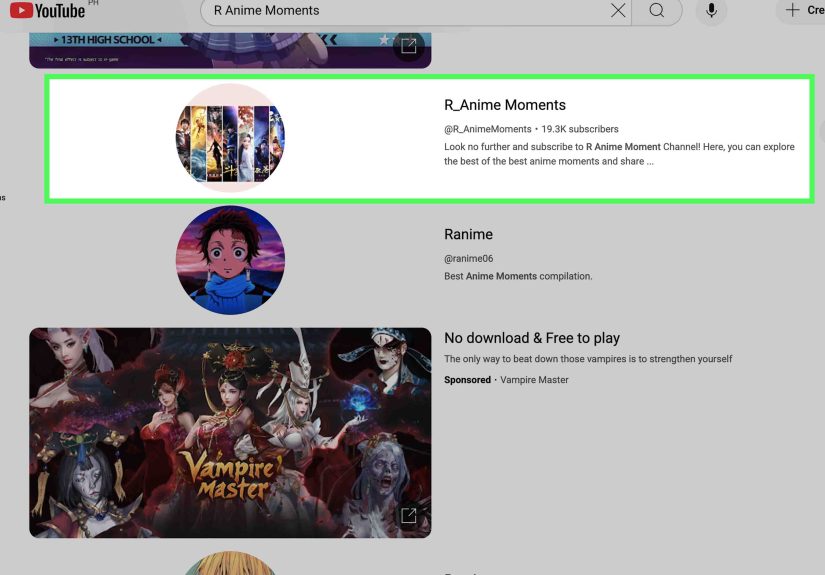
- Type your keyword or channel name (example: “minimalist meal prep”) and press Enter.
- On the results page, click Filter.
- Under Type (or Result Type), select Channel.
- Browse the channel results. Open promising channels in new tabs so you can compare.
Mobile (YouTube App) Steps
- Open the YouTube app and tap the Search icon.
- Enter your keyword or channel name.
- Tap More (often a three-dot icon) and then Filters.
- Look for a Type option. If Channel is available, select it.
- Open the channel that matches what you want.
Example: Let’s say you want channels about repairing old furniture. Search “furniture restoration”, filter to Channel,
and you’ll get creators who consistently post in that nichenot random one-off videos that happen to mention a chair once.
Pro Tips for Better Channel Search Results
- Use “channel” language in your query: Try “budget travel channel” or “personal finance YouTube channel.”
- Add location or style words: “NYC street food channel,” “beginner piano channel,” “data science channel.”
- Try the creator’s handle: If you know it, search @handle (more on that in Method 3).
Method 2: Search Inside a Specific YouTube Channel (Find Videos Fast)
Sometimes you already found the channel, but you need to locate a specific videomaybe that “Beginner Budget Spreadsheet” tutorial or the exact
“How to sharpen chisels” episode you watched once and then emotionally imprinted on.
Desktop (Web) Steps
- Open the creator’s channel page.
- Look near the channel navigation (tabs like Home, Videos, Shorts, Live).
- Click the magnifying glass (channel search icon).
- Type a keyword (example: “meal prep” or “2024 budget”) and press Enter.
- Review resultsthese are meant to be videos from that channel related to your keyword.
Mobile Steps (App + Backup Option)
- Open the channel in the YouTube app.
- If you see a search icon on the channel page, tap it and type your keyword.
- If you don’t see channel search in the app, use a mobile browser:
- Open your browser and go to the channel’s page on YouTube.
- Use the channel search icon there (often easier to access on the web interface).
Example: You’re on a cooking channel with 900 videos. Instead of scrolling forever, open the channel search and type
“slow cooker”. You’ll jump straight to the videos that match the keywordsaving time and at least three thumb cramps.
If Channel Search Acts Weird (It Happens)
Occasionally, people report that searching within a channel doesn’t behave as expected (for example, it surfaces results that feel too broad).
If that happens, don’t panicuse Method 4 (Google search operators) to force a “search within this channel” result set.
Method 3: Find Channels Using @Handles and YouTube URL Patterns
If you know a channel’s handle (the @name format), you’re holding the fast-pass ticket. Handles are unique identifiers that can be typed
into search and used directly in URLsperfect when channel names are common or duplicated.
Option A: Search the Handle Directly
- Click the YouTube search bar (app or desktop).
- Type the handle exactly (example: @YouTubeCreators).
- Open the matching channel result.
Option B: Type the Handle URL in Your Browser
- Open your browser address bar.
- Enter: youtube.com/@handle (example: youtube.com/@YouTubeCreators).
- Press Enter to go straight to the channel.
Option C: Recognize Other Channel URL Formats
Depending on when a channel was created (and what settings it has), you might also see:
- ID-based URL: youtube.com/channel/XXXXXXXX
- Legacy username URL: youtube.com/user/Name
- Older custom URL format: youtube.com/c/Name
Why this matters: If someone texts you a channel link (or you find one in an old bookmark), recognizing the format helps you confirm you’re
heading to a channelnot a playlist, video, or impersonator page.
Where to Find a Handle in Real Life
- In comments and mentions (handles show up next to names).
- In a creator’s About section or social profiles.
- In the channel URL when you open their page.
Method 4: Use Google Search Operators to Find Channels (and Search Within Them)
When YouTube search is being… YouTube search (bless its heart), Google can be the more precise toolespecially for searching within a specific channel
or narrowing down lookalike channel names.
Channel-Finding Searches (Copy/Paste Friendly)
-
Find channels by topic:
site:youtube.com "@"+keyword
Example:site:youtube.com "@woodworking" channel -
Find a channel by exact name:
site:youtube.com "Channel Name" "@"
Example:site:youtube.com "Budget Bytes" "@" -
Force the handle format:
site:youtube.com inurl:/@ "keyword"
Example:site:youtube.com inurl:/@ "home gym"
Search Within a Specific Channel Using Google
This is the “laser pointer” method. It’s perfect when you want a video on a channel but don’t want to wrestle with endless scrolling.
- Identify the channel’s handle (example: @ExampleCreator).
- Search:
site:youtube.com/@ExampleCreator "keyword" - Use quotes for exact phrases:
site:youtube.com/@ExampleCreator "beginner routine" - Exclude words to reduce junk:
site:youtube.com/@ExampleCreator "beginner routine" -shorts
Example: You remember a creator made a video about “knee-friendly cardio,” but the channel has years of uploads.
Use: site:youtube.com/@CreatorHandle "knee-friendly" and you’ll typically get a tighter set of results than generic YouTube search.
Quick Operator Tips That Actually Help
- Quotes narrow results:
"tiny apartment" - Minus sign excludes noise:
-shorts,-live,-trailer - Combine words like a normal human: Google is good at it, and YouTube… is trying.
Troubleshooting: Why You Can’t Find the Channel You’re Looking For
1) The channel name is too common
If the channel name is something like “Mike” or “Fitness,” search by topic + handle or use Method 4 with inurl:/@.
2) Restricted Mode or filters are limiting results
Restricted Mode can hide content that YouTube flags as potentially mature. If your search results feel oddly “clean,” check whether Restricted Mode is enabled
and consider switching it off (if appropriate for your situation).
3) YouTube is showing you what it thinks you want
YouTube results can be influenced by your history and behavior. If you want “neutral” results, try searching in a private window or signed outthen compare.
4) The channel changed its name (or rebranded)
Creators rebrand all the time. If you can’t find them by name, search a remembered series title, catchphrase, or collaborator name, then click through the
channel from a video.
Bonus: Make Your Channel Easier to Find (Creator Mini-Checklist)
If you’re a creator, channel searchability isn’t magicit’s good labeling.
- Choose a clear handle and use it consistently across platforms.
- Fill out your About section with plain-English topics you cover.
- Use consistent series titles so in-channel search finds your content easily.
- Name videos like a helpful human (clear topic + outcome beats cryptic vibes).
Real-World Experiences: What Searching YouTube Channels Feels Like (and How to Win)
Let’s talk about the part nobody puts in the official instructions: the experience of searching YouTube channelswhere you’re confident the creator exists,
but the platform behaves like you’re requesting a mythical creature.
One common scenario: you remember the channel perfectly… except for the name. You remember the style: cozy lighting, calm voice, and a series that taught you
how to organize a closet using only bins and optimism. You type “closet bins calm lady” and get 47 unrelated Shorts, a compilation from 2016, and one video that’s
literally just a man yelling at hangers. In this moment, the winner move is Method 1 with the Channel filterbecause you’re not actually searching
for a single video; you’re searching for a home base.
Another very real experience is the “identical twin channel name” problem. Two creators can have the same display name, or names that differ by one character.
This is where handles feel like the adult supervision YouTube needed all along. When you find a creator on Instagram or TikTok and they list @theirhandle,
you can jump straight to youtube.com/@handle (Method 3) and skip the imposters, fan accounts, and random “clips” channels that repost everything
like it’s a hobby.
Searching inside a channel (Method 2) is its own adventure. People usually try it after they’ve hit the “scroll fatigue” wallthumb tired, patience fading,
questioning why the human species invented fire but not “search within uploads” as a universal law. When channel search works well, it’s amazing: type “budget,”
and you instantly see every budget-related upload without digging through years of content. When it feels off, that’s when Method 4 becomes your secret weapon:
Google’s site:youtube.com/@handle searches often surface the exact video you want, especially when you remember a phrase from the title.
Then there’s the “I saw it once, now it’s gone” experience. Sometimes you watched a video months ago, didn’t save it, and now YouTube results are giving you
everything except what you need. In those cases, switching strategies matters more than trying harder. People often get unstuck by searching the channel’s niche
and using a distinctive keyword from the video (a tool name, a recipe ingredient, a game level, a guest’s name). Even adding one specific word like “beginner,”
“setup,” “tutorial,” or “review” can drastically change the channel results you see.
Finally, a small but powerful habit: when you find a channel you like, save future-you from future chaos. Subscribe, yesbut also consider saving a playlist
or writing down the handle. Handles are stable identifiers, and they make searching faster later. Think of it like labeling your leftovers: it’s not glamorous,
but it prevents heartbreak.
The big takeaway from real-world searching is simple: don’t rely on one method. Use filters when you’re discovering, channel search when you’re hunting within
a creator’s library, handles when you need precision, and Google operators when you want the sharpest tool in the drawer. Your time (and your thumbs) deserve it.
Conclusion
Searching YouTube channels doesn’t have to be a scavenger hunt. Use Filters to see channels only, use in-channel search to find
specific uploads, use @handles and channel URLs for direct navigation, and use Google operators when you need maximum precision.
Once you know which method matches your situation, finding the right creators becomes fast, repeatable, and way less annoying.





 Close
Close