
Table of Contents >> Show >> Hide
- Before You Click Anything: “Sign Out of Chrome” vs. “Sign Out of Google”
- How to Sign Out of Chrome on Desktop (Windows, macOS, Linux)
- Method 1: Sign Out from the Profile Menu (Fastest)
- Method 2: Turn Off Sync (Stops Syncing and Signs You Out of Google Services)
- Method 3: Remove the Account or Delete the Chrome Profile (Most Thorough for Shared Computers)
- Optional: Stop Chrome from Auto-Signing In When You Log into Gmail
- Quick Clarifier: Incognito Mode Doesn’t Equal “Signed Out”
- How to Sign Out of Chrome on Mobile
- How to Sign Out of Chrome Remotely (When You Don’t Have the Device)
- After You Sign Out: A Smart Privacy Checklist (Especially for Shared Devices)
- Troubleshooting: “Why Does Chrome Keep Signing Me Back In?”
- FAQ: Quick Answers People Actually Want
- Stories from the Sign-Out Trenches (Experiences & Real-World Scenarios)
- SEO Tags
Chrome is a fantastic browserfast, familiar, and occasionally a little too enthusiastic about “staying logged in.”
If you’ve ever closed your laptop thinking, “Cool, I’m signed out,” only to open Chrome later and find your Gmail smiling back at you like nothing happened…
welcome. You’re in the right place.
This guide walks you through signing out of Google Chrome on desktop (Windows, macOS, Linux) and mobile (Android, iPhone, iPad),
plus the important “bonus levels” like turning off sync, preventing automatic sign-in prompts, removing a profile from a shared computer,
and signing out remotely when you no longer have the device.
Before You Click Anything: “Sign Out of Chrome” vs. “Sign Out of Google”
Chrome mixes two concepts that sound similar but behave differently:
-
Signing out of a Google website (like Gmail, Drive, or YouTube) signs you out of that site in that browser session,
but it may not sign you out of Chrome as a browser profile. -
Signing out of Chrome signs your browser profile out, pauses syncing, and helps prevent your bookmarks, passwords,
history, and other synced goodies from showing up for the next person who uses the device.
Translation: logging out of Gmail is like locking one door. Signing out of Chrome is like leaving the building with your keycard.
If your goal is privacy on a shared device, you usually want the “sign out of Chrome” optionnot just “sign out of Gmail.”
How to Sign Out of Chrome on Desktop (Windows, macOS, Linux)
On computers, Chrome gives you a couple of clean ways to sign outdepending on whether you’re using Sync and how your profile is set up.
Here are the practical options, from quickest to most thorough.
Method 1: Sign Out from the Profile Menu (Fastest)
- Open Chrome.
- Click your profile icon (your photo, initial, or a silhouette) in the top-right corner.
- Select Sign out of Chrome.
This is the “I’m done here” exit. If you’re on a borrowed laptop or a family computer, this is usually the move.
Method 2: Turn Off Sync (Stops Syncing and Signs You Out of Google Services)
If Sync is enabled, you might see “Sync is on” in the profile menu. Turning Sync off is a common way to sign out and stop data
from continuing to sync to your Google account.
- Open Chrome.
- Click your profile icon (top right).
- Select Sync is on (or something similar).
- Under You and Google, select Turn off, then confirm Turn off.
Important detail that surprises people: when you turn off Sync, Chrome can still keep local items (like bookmarks, history, and saved passwords)
on that computerbut changes won’t keep syncing to your Google account anymore.
In other words, your account connection is paused, but the device may still have local traces unless you remove them.
If Chrome offers an option like “Clear bookmarks, history, passwords, and more from this device” during sign-out,
choose it on shared/public computers. On your own laptop? You might skip it so your local setup stays intact.
Method 3: Remove the Account or Delete the Chrome Profile (Most Thorough for Shared Computers)
If you signed into Chrome on a device you don’t trust (hotel business center, borrowed computer, “friend’s laptop”),
the best clean-up is often removing your account from Chrome or deleting the Chrome profile you used there.
What this accomplishes:
it removes your profile’s browsing data, saved passwords, extensions, and account connection from that computerso the next person isn’t one click
away from your synced life.
A safer habit for shared machines is using Guest mode or a separate Chrome profile from the start:
- Guest mode: temporary browsing with fewer leftovers (best for public/shared devices).
- Separate profiles: best for families or shared home computers so each person has their own space.
To create a separate profile on desktop:
- Open Chrome.
- Click the profile icon (top right).
- Select Add (or Add new profile).
- Choose a name and icon/color, and (optionally) sign in for syncing.
This keeps “your stuff” separate from “their stuff,” which is the modern version of not mixing toothbrushes.
Optional: Stop Chrome from Auto-Signing In When You Log into Gmail
Ever signed into Gmail quickly to grab one email, then Chrome tries to recruit you into a full browser sign-in?
Chrome has a preference for that. You can change it.
On desktop, Chrome lets you choose whether signing into a Google service (like Gmail) also signs you into Chrome.
Look for Google Services Settings and set your preference so you can stay signed out of Chrome even if you use a Google website.
There’s also a setting often labeled “Allow Chrome sign-in”. Turning it off helps prevent Chrome from automatically signing in
just because you signed into a Google site.
Quick Clarifier: Incognito Mode Doesn’t Equal “Signed Out”
Incognito is great for reducing local browsing history, but it’s not a magical cloaking device for account sign-ins.
If you sign into Google in an Incognito window, you’re signed in in that window until you close it.
It’s helpful, but it’s not the same as signing out of Chrome on the device.
How to Sign Out of Chrome on Mobile
Mobile Chrome is the same browser family, but it behaves a little differently. You don’t manage “profiles” in quite the same way,
and sign-out options live inside the app settings.
Android: Sign Out of Chrome
- Open the Chrome app.
- Tap More (the three dots) near the address bar.
- Tap Settings.
- Tap your name/account at the top.
- Tap Sign out.
If you’re trying to avoid Chrome nudging you into signing in again, you can also adjust sign-in prompts in:
Settings → Google Services → turn off Allow Chrome sign-in.
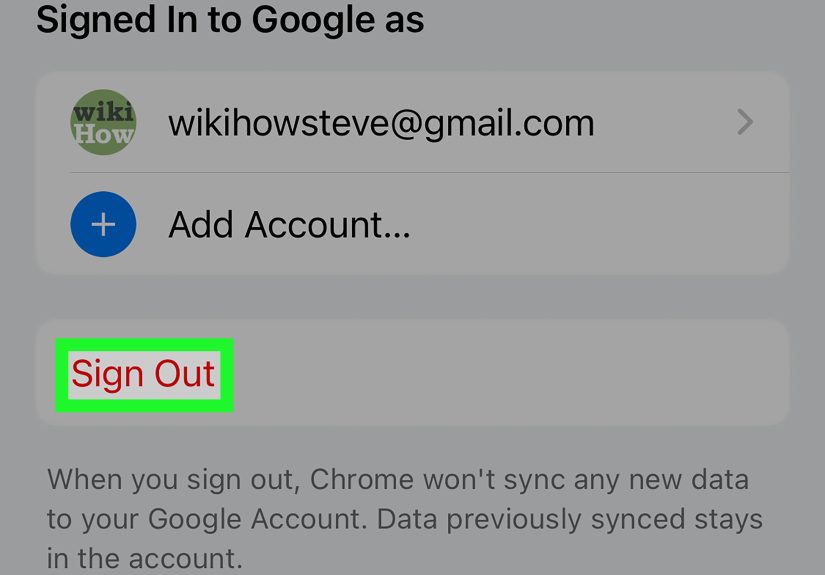
iPhone & iPad: Sign Out of Chrome
- Open the Chrome app.
- Tap More (three dots), then tap Settings.
- Tap your name/account.
- Tap Sign Out.
Just like Android, iOS also includes a way to reduce “Chrome sign-in” prompts:
Settings → Google Services → turn off Allow Chrome Sign-in.
Mobile Reality Check: Signing Out of Chrome Isn’t the Same as Removing the Google Account from Your Phone
On phones, Chrome sign-out affects Chrome. But your Google account may still exist on your device for other apps (Gmail, YouTube, Photos).
If you’re selling a phone, returning a work device, or handing a tablet to a kid who thinks “accidentally” buying apps is a personality trait,
consider removing the account from the device in the phone’s main settings, toonot just from Chrome.
How to Sign Out of Chrome Remotely (When You Don’t Have the Device)
Lost a laptop? Forgot to sign out on an old desktop at your parents’ house? Logged into Chrome on your cousin’s computer during the holidays and now
you can’t stop thinking about it? Remote sign-out is your friend.
Two practical approaches:
- Remove Chrome’s access from your Google account’s connected apps (this can sign you out broadly, including past computers).
- Use your Google account “Your devices” controls to sign out of a specific device.
The exact labels can vary slightly, but the general path is through your Google Account security/device management pages.
Once you remove access or sign out a device remotely, you may also want to change your password if you’re worried someone still has access.
After You Sign Out: A Smart Privacy Checklist (Especially for Shared Devices)
Signing out is a great start. Here’s how to make it harder for the next person to stumble into your digital life like it’s an open house.
1) Clear Browsing Data (If the Device Isn’t Yours)
If you used a shared/public computer, clearing browsing data helps remove session cookies (the “remember me” bits), cached pages, and history.
On desktop, you can usually find this under Settings → Privacy and security → Clear browsing data.
If you were signed into sites (email, banking, shopping), clearing cookies can help ensure you’re truly logged out.
Just be aware: clearing cookies signs you out of a lot of siteswhich is kind of the point on a shared machine.
2) Check Saved Passwords and Autofill
If you accidentally saved a password on someone else’s device (Chrome offers politely… sometimes too politely),
go to Chrome’s password manager/autofill settings and remove anything you don’t want stored locally.
3) Confirm You Signed Out of Key Sites
Even after signing out of Chrome, double-check that important websites (Gmail, cloud storage, social media, shopping accounts) aren’t still open
in a logged-in tab somewhere. Close those tabs, too.
Troubleshooting: “Why Does Chrome Keep Signing Me Back In?”
If you sign out and Chrome behaves like a golden retriever that heard the word “walk,” these are the most common causes.
Problem 1: “Allow Chrome sign-in” is enabled
If this setting is on, signing into a Google website can trigger Chrome sign-in promptsor sign you into Chrome depending on your preference settings.
Turn it off if your goal is to stay signed out unless you explicitly choose otherwise.
Problem 2: You signed out of Chrome, but cookies kept you signed into websites
Website sessions are often stored in cookies. If you didn’t clear cookies (or the browser restored a session),
you might still be logged into a site even after changing your Chrome sign-in state.
Fix: clear site cookies or clear browsing data for the device.
Problem 3: You’re using multiple Chrome profiles
Desktop Chrome can hold multiple profiles at once. You might have signed out of one profile while another profile is still signed in.
Check the profile menuif you see multiple profile icons, make sure you’re in the right one before you sign out.
Problem 4: Work/school-managed Chrome
If your browser is managed by an organization (work or school), policies can change what you can doespecially around sign-in,
syncing, and profile switching. In that case, your IT/admin team may have controls that override normal settings.
FAQ: Quick Answers People Actually Want
Will signing out of Chrome delete my bookmarks and passwords?
Usually, signing out pauses syncing and disconnects the account. Local data may remain on that device unless you choose an option to clear it
or you delete/remove the profile. If the device isn’t yours, clearing local data is the safer choice.
Is closing Chrome the same as signing out?
Nope. Closing Chrome is like turning off the lights. Signing out is like locking the door and taking your keys.
What’s the safest option on a public computer?
Ideally: use Guest mode, avoid saving passwords, sign out of Chrome, then clear browsing data.
If you already signed in with your main profile, remove your profile/account from that machine if possible.
Stories from the Sign-Out Trenches (Experiences & Real-World Scenarios)
Let’s make this practical with a few “yep, that happens” situations. These are the moments where knowing the difference between
“sign out of Gmail” and “sign out of Chrome” saves you from the digital version of leaving your house keys under the doormat with a neon sign.
Scenario 1: The Library Computer Panic
You’re at a library, you quickly check Gmail, and Chrome offers that cheerful little prompt to “Turn on sync.”
You’re in a hurry, you click through, you print your document, and you leavefeeling productive.
Two hours later, your brain wakes up and whispers: “Wait… did I sign out?”
In this scenario, signing out of Gmail alone is not enough if you turned on Chrome sign-in or Sync.
The best exit plan is: sign out of Chrome (profile menu → sign out), then clear browsing data (especially cookies),
and close the browser. If you have access to the machine again, consider removing the profile you created.
If you don’t have access again, remote sign-out through your Google Account device/app controls is your backup parachute.
Scenario 2: The “Just Borrowing Your Laptop for One Minute” Trap
A friend says they need to “just check one thing,” and youbeing a kind and trusting humanhand over your laptop.
Then you watch them open Chrome, see your profile icon, and instantly have access to your autofill, your bookmarks,
and the weird collection of tabs you swear you were going to close.
The fix going forward is simple: use Guest mode for anyone who isn’t you. It’s quick, it’s clean, and it doesn’t merge lives.
If you already let someone use your profile, signing out of Chrome (or locking down your device account) is step one.
Step two: make sure your saved passwords and payment methods aren’t casually available in autofill.
It’s not about distrusting your friendit’s about distrusting the universe’s talent for awkward timing.
Scenario 3: The Family Computer That Turns Into a Bookmark Soup
Shared family desktop. One Chrome window. Everyone uses it. Suddenly you have recipe bookmarks you didn’t save,
school logins you don’t recognize, and your YouTube recommendations are 40% cartoons and 60% “how to build a jet engine from soda cans.”
This is where separate Chrome profiles are a lifesaver. Each person gets their own profile and (optionally) their own sign-in.
The browsing data stays separated, and nobody has to ask, “Who keeps logging into my email?” like it’s a mystery novel.
If you want to keep it extra clean, don’t enable Sync on a shared machine unless it’s your private profile.
The moment Sync is on, your account data becomes portablewhich is great for you and terrible for boundaries.
Scenario 4: The Old Phone / Old Laptop Ghost Login
You upgraded devices and forgot the old one in a drawer. Months later, you donate it, sell it, or hand it to a relative.
If you didn’t sign out (and wipe it), that device can still be tied to your account in ways you don’t want.
The grown-up move here is two-part:
(1) sign out of Chrome (and remove the account from the device if you’re handing it off),
and (2) use your Google Account’s device controls to sign out remotely if you’re not sure what’s still connected.
If anything feels truly riskylost device, stolen device, unknown accesschange your password and review account security.
It’s annoying, but less annoying than explaining to your bank that your login was borrowed by “a drawer ghost.”
The big theme across all these experiences: Chrome is incredibly convenient when it’s your device. When it’s not your device,
convenience becomes a liability. Treat sign-out like washing your handsquick, routine, and wildly underrated until you need it.





 Close
Close