
Table of Contents >> Show >> Hide
- What Are Filter Keys in Windows?
- Common Signs Filter Keys Is Turned On
- Method 1: Turn Off Filter Keys in Windows Settings
- Method 2: Use the Right Shift Shortcut
- Method 3: Turn Off Filter Keys from Control Panel
- Method 4: Use Windows Search or the Run Command
- What to Do If Filter Keys Keeps Turning Back On
- Filter Keys vs. Sticky Keys vs. Toggle Keys
- How to Test Whether the Problem Is Fixed
- If Turning Off Filter Keys Does Not Fix the Keyboard
- Best Settings After You Turn Off Filter Keys
- Real-World Experience: The Day Filter Keys Made a Keyboard Look Broken
- Conclusion
Note: This guide is written for Windows 11 and Windows 10 users and is based on current Windows accessibility behavior, official Microsoft guidance, and common support recommendations from major PC manufacturers.
If your keyboard suddenly feels like it joined a slow-motion movie, Filter Keys may be the tiny Windows setting causing big typing drama. You press a key, nothing happens. You hold it a little longer, maybe it works. You try to delete a sentence, and Backspace behaves like it is being paid by the hour. Before you blame your keyboard, your laptop, your coffee, or the universe, check Filter Keys.
Filter Keys is a Windows accessibility feature designed to help people who may press keys accidentally or have difficulty with repeated keystrokes. When used intentionally, it can be genuinely helpful. When turned on by accident, however, it can make your keyboard feel broken, laggy, or strangely selective about which letters deserve to exist.
In this guide, you will learn how to turn off Filter Keys in Windows using four easy methods. We will cover the Settings app, the Right Shift shortcut, Control Panel, and a fast search/run method for when you want to get in, fix the problem, and return to normal typing life.
What Are Filter Keys in Windows?
Filter Keys is an accessibility setting in Windows that changes how your keyboard responds. It can tell your computer to ignore brief keystrokes, repeated keystrokes, or accidental key presses. In plain English, Windows may decide, “That key press looked suspicious. I shall ignore it.” Helpful in some situations, maddening in others.
Filter Keys may include options such as slow keys, bounce keys, and repeat keys. Slow keys require you to hold a key down for a specific amount of time before Windows accepts it. Bounce keys help ignore repeated presses of the same key. Repeat keys adjust how Windows handles a key when you hold it down. These settings are useful for accessibility, but if you did not mean to turn them on, they can make regular typing feel like trying to text with oven mitts.
Common Signs Filter Keys Is Turned On
You may need to disable Filter Keys if your keyboard shows any of these symptoms:
- Letters appear only after you hold keys down longer than usual.
- The keyboard feels delayed or unresponsive.
- Backspace, Delete, or arrow keys repeat slowly.
- You hear clicking or beeping sounds while typing.
- Some quick keystrokes seem to be ignored.
- Your password is hard to type on the Windows sign-in screen.
These symptoms can also come from keyboard hardware issues, outdated drivers, low battery on a wireless keyboard, or dirt under the keys. Still, Filter Keys is one of the easiest things to check first. It takes less time than cleaning a keyboard and involves fewer crumbs.
Method 1: Turn Off Filter Keys in Windows Settings
The Settings app is the easiest and most modern way to turn off Filter Keys in Windows 11 and Windows 10. If your mouse still works, this method is usually the least stressful.
For Windows 11
- Click the Start button.
- Open Settings. You can also press Windows + I.
- Select Accessibility from the left menu.
- Scroll down and click Keyboard.
- Find Filter keys.
- Switch Filter keys to Off.
After turning it off, open Notepad, your browser search bar, or any text box and type a short sentence. Try something simple like “The keyboard is alive again.” If every letter appears normally, congratulations: your keyboard has returned from its dramatic vacation.
For Windows 10
- Click Start.
- Open Settings.
- Choose Ease of Access.
- Select Keyboard from the left menu.
- Scroll to Use Filter Keys.
- Turn the setting Off.
While you are on this page, also check Sticky Keys and Toggle Keys. These features are different from Filter Keys, but they live in the same neighborhood and sometimes get blamed for similar keyboard weirdness. If you do not use them, turning them off can help keep your typing experience predictable.
Method 2: Use the Right Shift Shortcut
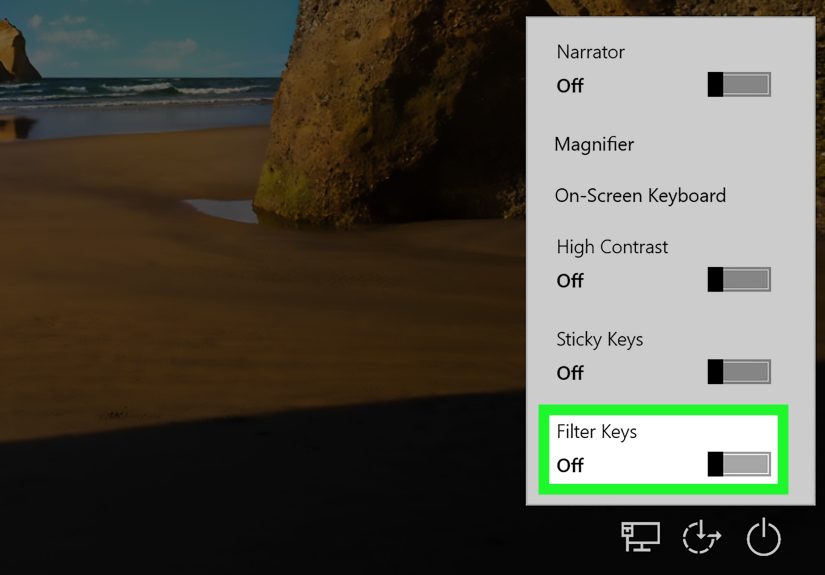
Windows includes a keyboard shortcut that can turn Filter Keys on or off: holding the Right Shift key for about eight seconds. This shortcut is one of the main reasons people accidentally enable Filter Keys. Maybe you rested your finger on Shift while thinking. Maybe your cat walked across the keyboard with the confidence of a tiny IT administrator. Either way, it happens.
How to Try the Shortcut
- Press and hold the Right Shift key for about eight seconds.
- If a Filter Keys prompt appears, choose the option that turns it off or cancels enabling it.
- Test your keyboard again in a text box.
If Filter Keys was enabled through the shortcut, this may solve the issue quickly. However, the shortcut can also become the villain of the story if you keep triggering it accidentally. For that reason, you may want to disable the shortcut after turning Filter Keys off.
How to Disable the Filter Keys Shortcut
On Windows 11:
- Open Settings.
- Go to Accessibility > Keyboard.
- Click Filter keys to expand its options.
- Turn off the option that allows the shortcut key to start Filter Keys.
On Windows 10:
- Open Settings.
- Go to Ease of Access > Keyboard.
- Look under Use Filter Keys.
- Disable the shortcut option if available.
This is a smart move if you use Shift often for gaming, coding, spreadsheets, shortcuts, or typing in all caps when your snack falls on the floor. Turning off the shortcut does not remove the accessibility feature; it simply makes it harder to activate by accident.
Method 3: Turn Off Filter Keys from Control Panel
Control Panel may look like it wandered in from an older Windows era, but it still gets the job done. This method is especially useful if you are helping someone on an older system or if the Settings app is not opening properly.
Steps to Disable Filter Keys in Control Panel
- Click Start.
- Type Control Panel and open it.
- Choose Ease of Access.
- Click Ease of Access Center.
- Select Make the keyboard easier to use.
- Find Turn on Filter Keys.
- Remove the check mark.
- Click Apply, then OK.
Control Panel is also a good place to check related keyboard accessibility settings. If Turn on Sticky Keys or Turn on Toggle Keys is checked and you do not need those features, you can uncheck them too. This helps prevent confusion when troubleshooting keyboard input delay, strange beeps, or unexpected shortcut behavior.
Method 4: Use Windows Search or the Run Command
If you like shortcuts that do not involve hunting through menus, this method is for you. Windows Search can take you directly to the keyboard accessibility page. It is fast, clean, and ideal when you want to fix the problem before your patience leaves the room.
Option A: Use Windows Search
- Click the Start button or the Search icon.
- Type Filter Keys or keyboard accessibility.
- Open the matching keyboard accessibility setting.
- Turn Filter Keys off.
Option B: Use the Run Command
- Press Windows + R.
- Type ms-settings:easeofaccess-keyboard.
- Press Enter.
- Turn Filter Keys off.
This command opens the keyboard accessibility settings directly on many Windows 10 and Windows 11 systems. If the command does not work on your PC, use Windows Search instead. Search is less fancy, but it is reliablelike a plain screwdriver in a drawer full of mystery cables.
What to Do If Filter Keys Keeps Turning Back On
If Filter Keys keeps returning like a sequel nobody requested, the shortcut setting is the first thing to check. Disable the Right Shift shortcut so Windows does not turn Filter Keys on again when you hold Shift too long.
You should also check whether someone else uses the computer and needs Filter Keys enabled. Accessibility features exist for good reasons, and turning them off without asking can make the device harder for another person to use. If it is a shared PC, have a quick conversation before changing settings permanently.
If you are using a school, office, or managed computer, some settings may be controlled by an administrator. In that case, you may need to contact IT support. Tell them exactly what is happening: delayed keyboard response, ignored keystrokes, or Filter Keys turning on by itself. Specific symptoms help them solve the issue faster.
Filter Keys vs. Sticky Keys vs. Toggle Keys
Because these settings often appear on the same page, it is easy to mix them up. Here is the quick version:
- Filter Keys: Ignores brief, repeated, or accidental keystrokes.
- Sticky Keys: Lets you press shortcut keys one at a time instead of holding them together.
- Toggle Keys: Plays a sound when you press keys like Caps Lock, Num Lock, or Scroll Lock.
If your keyboard is slow or missing letters, Filter Keys is the most likely suspect. If shortcuts behave strangely, check Sticky Keys. If your computer beeps when you press Caps Lock, Toggle Keys may be responsible. Windows accessibility tools are not bad; they just become confusing when they show up uninvited.
How to Test Whether the Problem Is Fixed
After you turn off Filter Keys, run a quick keyboard test. You do not need special software. Open Notepad, Word, a browser address bar, or any search box and try the following:
- Type a sentence at normal speed.
- Hold down Backspace and see whether it deletes smoothly.
- Hold down a letter key and check whether it repeats normally.
- Press Shift quickly while typing capital letters.
- Try arrow keys in a text document.
If the keyboard responds normally, the issue was likely Filter Keys. If the keyboard is still delayed, missing characters, or refusing to cooperate, continue troubleshooting.
If Turning Off Filter Keys Does Not Fix the Keyboard
Filter Keys is common, but it is not the only cause of keyboard trouble. If your keyboard still behaves badly, try these steps:
Restart Your Computer
A full restart can clear temporary Windows glitches. Do not just close the lid or put the PC to sleep. Restart it properly and test the keyboard again.
Check Wireless Keyboard Battery
If you use a Bluetooth or wireless keyboard, weak batteries can cause lag, missed keystrokes, or random disconnects. Replace or recharge the battery and move the keyboard closer to the computer.
Try Another Keyboard
Plug in a different keyboard if you have one. If the second keyboard works perfectly, your original keyboard may have a hardware issue. If both keyboards act the same way, the problem is probably software or settings-related.
Update or Reinstall Keyboard Drivers
Open Device Manager, expand Keyboards, right-click your keyboard device, and choose Update driver. You can also uninstall the device and restart Windows so it reinstalls the driver automatically. This can help when the keyboard problem started after an update or device change.
Clean the Keyboard Carefully
Dust, crumbs, pet hair, and the archaeological remains of desk snacks can interfere with keys. Power off the device before cleaning. For external keyboards, unplug them first. Use compressed air or a soft brush. Avoid pouring liquid cleaner directly onto the keyboard unless your goal is to create a very expensive paperweight.
Best Settings After You Turn Off Filter Keys
For most users, the best setup is simple:
- Filter Keys: Off
- Keyboard shortcut for Filter Keys: Off, unless you need it
- Sticky Keys: Off, unless you use it
- Toggle Keys: Optional
If you do need Filter Keys for accessibility, do not simply turn everything off. Instead, adjust the delay and repeat settings until the keyboard feels comfortable. Accessibility settings are personal. The right setup is the one that helps you type with less effort and fewer mistakes.
Real-World Experience: The Day Filter Keys Made a Keyboard Look Broken
Here is a common experience: someone opens their laptop, starts typing a password, and suddenly the keyboard acts like it forgot its job description. Some letters do not appear. Others show up only after being held down. Backspace moves at the speed of a sleepy turtle. The first reaction is usually panic. The second reaction is pressing keys harder, which does not help but does make the keyboard feel judged.
In many cases, Filter Keys was accidentally enabled. The person may have held the Right Shift key too long while thinking, gaming, editing a document, or cleaning the keyboard. Windows then activated the accessibility shortcut, and suddenly every quick tap looked like an unwanted keystroke. To the user, the keyboard seemed damaged. To Windows, it was simply following orders.
The fastest fix is usually opening Settings, going to Accessibility, selecting Keyboard, and switching Filter Keys off. The moment it is disabled, typing often returns to normal immediately. That instant recovery is both satisfying and slightly embarrassing, like discovering your “broken” headphones were just plugged into the wrong jack.
One useful habit is to check accessibility keyboard settings before replacing hardware. Many people buy a new keyboard, schedule a repair, or spend an hour searching for driver fixes when the real issue is a single toggle. Filter Keys is especially sneaky because it does not always announce itself clearly. You may hear a beep, see a small prompt, or notice an icon, but if you are busy, it is easy to miss.
Another practical lesson: disable the Filter Keys shortcut if you do not use it. This prevents accidental activation later. It is a small change that can save a lot of confusion, especially on shared family computers, school laptops, gaming PCs, and work machines where people use Shift constantly. Gamers, in particular, may hold Shift while sprinting, crouching, or triggering in-game actions. Writers and spreadsheet users also hit Shift all day long. The shortcut is helpful for users who need it, but unnecessary for people who keep turning it on by mistake.
It also helps to know the difference between a settings issue and a hardware issue. If all keys are delayed in the same way, Filter Keys or another Windows setting may be responsible. If only one or two keys fail, dirt or physical damage may be the cause. If an external keyboard works but the laptop keyboard does not, the built-in keyboard may need inspection. Good troubleshooting is like detective work, except the suspect is sometimes a checkbox.
The biggest takeaway is simple: when your keyboard becomes slow, unresponsive, or oddly picky, do not panic. Check Filter Keys first. It is quick, free, and reversible. Your keyboard may not be broken at allit may just be trapped behind an accessibility setting that was trying to help a little too enthusiastically.
Conclusion
Learning how to turn off Filter Keys in Windows can save you from unnecessary frustration, wasted troubleshooting time, and the classic “my keyboard is broken” panic spiral. Start with the Settings app, try the Right Shift shortcut, check Control Panel, or jump directly to keyboard accessibility settings with Windows Search or the Run command. Once Filter Keys is off, test your keyboard and disable the shortcut if you do not need it.
Filter Keys is a valuable accessibility feature when used intentionally. But when it appears by accident, it can make Windows typing feel delayed, stiff, or downright haunted. Fortunately, the fix is usually simple. A few clicks, one toggle, and your keyboard can go back to doing what keyboards do best: letting you type without turning every sentence into a suspense thriller.







 Close
Close