
Table of Contents >> Show >> Hide
- First, a quick reality check: Hangouts in Gmail is now Google Chat
- How to open Google Chat (Hangouts) in Gmail on a computer
- How to open Google Chat (Hangouts) in the Gmail app (iPhone & Android)
- What you can do once Google Chat is open in Gmail
- Real-life examples: when Chat in Gmail beats email
- Troubleshooting: Chat still isn’t showing up in Gmail
- Google Workspace admin notes: enabling Chat for an organization
- Privacy, history, and notifications: don’t let Chat become “another noisy app”
- Bonus: other ways to open Google Chat (outside Gmail)
- Experiences: What it’s actually like using Google Chat in Gmail
- Conclusion
If you’re here because you miss the little Hangouts speech bubble in Gmail, you’re not alone. A lot of people still say “Hangouts”
the same way we say “Band-Aid” or “Google it.” But in Gmail today, the thing you’re looking for is called Google Chat.
It lives right inside Gmail (on web and mobile), and once it’s turned on, it’s basically “Hangouts, but it grew up, got a job,
and learned what a group project is.”
In this guide, you’ll learn exactly how to open Hangouts in Gmail (aka enable and open Google Chat in Gmail),
how it looks on desktop and on the Gmail app, what to do if Chat is missing, and a few real-world ways people actually use it so it doesn’t become
“that feature you turned on once and then forgot existed.”
First, a quick reality check: Hangouts in Gmail is now Google Chat
Google Hangouts has been retired and redirected to Google Chat, including the Hangouts experience that used to appear inside Gmail. So if you’re trying
to “open Hangouts,” what you’re really doing is turning on Google Chat so it shows up in Gmail’s sidebar or as tabs in the Gmail app.
The good news: you don’t need a separate “Hangouts” login, extension, or secret setting from 2014. You just need to enable Chat inside Gmail, and you’re
back in business.
How to open Google Chat (Hangouts) in Gmail on a computer
On desktop, Google Chat shows up inside Gmail after you turn it on in Gmail settings. It usually appears in the left sidebar, where you can jump between
Mail and Chat without feeling like you’ve moved to a different planet.
Step-by-step: Turn Chat on in Gmail (web)
- Open Gmail in your browser and sign into the account you want to use.
- Click the gear icon (Settings) in the top-right.
- Click See all settings.
- Open the Chat and Meet tab.
-
Next to Chat, select Google Chat (not “Off”).
Tip: If you only want email and nothing else, this is also where you’d switch Chat off. - Scroll (if needed) and click Save Changes.
What happens after you save
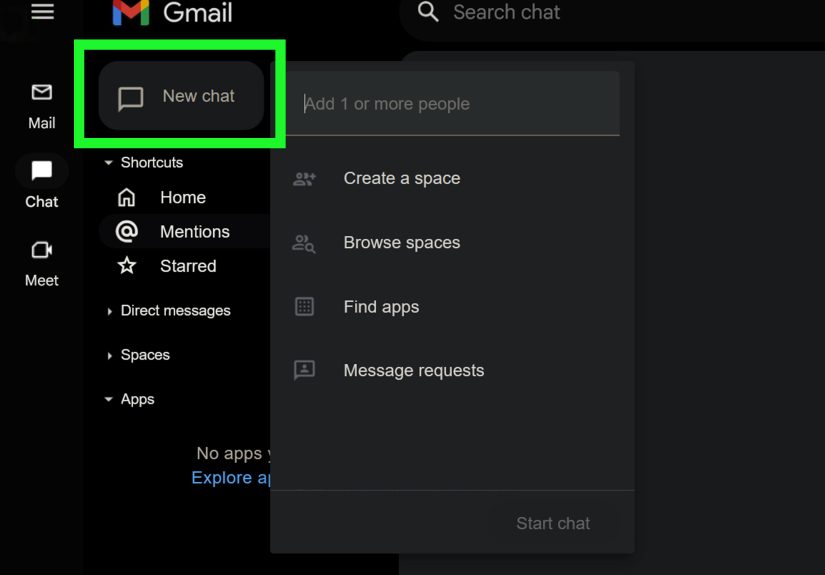
Gmail refreshes, and you should now see a Chat section (and often Spaces) in the Gmail sidebar. Click a conversation
to message someone directly, or click Spaces to open a group space for a team, class, club, or “we need to plan this trip before we
all pretend we’re too busy” situation.
Optional: Customize your layout so Chat isn’t eating your screen
- Want Chat in Gmail? Keep Google Chat turned on.
- Want Meet shortcuts gone? In the same “Chat and Meet” area, you can typically hide or show the Meet section depending on your layout preferences.
- Want the “integrated” Gmail layout? Turning Chat on is part of what enables Gmail’s integrated view (Mail + Chat/Spaces/Meet in one place).
How to open Google Chat (Hangouts) in the Gmail app (iPhone & Android)
On mobile, Chat can appear as tabs in the Gmail app (often labeled Mail, Chat, and Spaces).
The important detail most people miss: the Chat toggle is commonly per account. If you have multiple Gmail accounts, one might show Chat
while another is still set to “nope.”
iPhone & iPad: Turn Chat on in the Gmail app
- Open the Gmail app.
- Tap the menu (three lines) in the top-left.
- Tap Settings.
- Select the Gmail account you want (if you have more than one).
- Under Apps in Gmail, tap Chat.
- Turn Chat on.
Android: Turn Chat on in the Gmail app
- Open the Gmail app.
- Tap the menu (three lines) in the top-left.
- Tap Settings.
- Select the account you want (important if you have multiple accounts).
- Under General, find Chat.
- Turn on Show the chat and spaces tab.
After you enable Chat, go back to your inbox. You should see Chat/Spaces tabs (or a Chat section). Tap a person to message them, or open Spaces for group chats.
What you can do once Google Chat is open in Gmail
If your mental model of Hangouts is “a simple message box,” Google Chat in Gmail adds a few upgrades that matter in real life:
- Direct messages (DMs): quick 1:1 chats with a contact or coworker.
- Group conversations: small groups without the “Reply All Apocalypse” energy of email.
- Spaces: persistent group rooms for teams, projects, classes, clubs, or family planning.
- Sharing files: drop a Google Drive file into chat so everyone’s looking at the same thing (instead of “version_FINAL_final2_reallyfinal”).
- Meet integration: jump from “can we talk?” to an actual call without opening 17 tabs.
Real-life examples: when Chat in Gmail beats email
Example 1: The 20-second question that should not be an email thread
You need one detail: “Are we meeting at 3 or 3:30?” If you email that, you may receive:
(1) a long reply, (2) a calendar screenshot, and (3) someone adding a joke GIF. Chat solves this with one line, one answer, done.
Example 2: A Space for a project that won’t stay “small”
Let’s say you’re organizing a client website refresh or a school event. Create a Space named “Website Refresh” or “Fundraiser Night.”
Now updates live in one place: links, decisions, who’s doing what, and the one person who only reads messages after you @mention them.
Example 3: Fast feedback on a file
Instead of emailing a document and hoping people see the attachment, you share the Drive link in Chat and say,
“Can you check the intro paragraph and the pricing table?” You’ll usually get faster responses because Chat feels lightweight.
Example 4: From message to meeting without the scheduling circus
You’re messaging a coworker, and the conversation turns into “this is getting complicated.” That’s your cue to jump into a Meet call.
In many setups, Chat makes that transition easy, especially for Workspace accounts.
Troubleshooting: Chat still isn’t showing up in Gmail
If you followed the steps and Chat is missing, don’t panic. This is usually a settings issue, an admin restriction, or an app/version mismatch.
Here are the most common fixes.
1) Chat is turned off in Gmail settings
Re-check Gmail on desktop: Settings → See all settings → Chat and Meet → Google Chat → Save Changes.
If it’s set to “Off,” Gmail won’t show Chat.
2) You’re toggling the wrong account (mobile)
On the Gmail app, Chat settings are commonly per account. Make sure you opened Settings, selected the correct Gmail account,
and turned Chat on for that specific account.
3) Your work/school admin disabled Google Chat
If you’re using Google Workspace (company or school email), your admin can turn Chat off for the organization or for specific groups.
In that case, you can toggle settings all day and still won’t see Chatbecause it’s disabled at the service level.
4) Your Gmail app or browser is outdated
Update the Gmail app (iOS/Android) and try again. On desktop, try a modern browser, disable conflicting extensions,
and reload Gmail after saving settings.
5) Your layout is cluttered (and you think Chat is “missing”)
Sometimes Chat is enabled, but it’s collapsed or tucked away in the sidebar. Expand the left menu, look for the Chat label,
or switch to Gmail’s integrated view if that’s your preference.
Google Workspace admin notes: enabling Chat for an organization
If you’re an admin and people are asking, “Why can’t I open Hangouts in Gmail anymore?”, the answer is:
you need to confirm Google Chat is enabled for your domain (and for the right organizational units or groups).
Typical admin path (high level)
- Sign into the Google Admin console with the correct admin privileges.
- Go to Apps → Google Workspace → Google Chat.
- Open Service status.
- Turn Chat ON (for everyone or for the specific org unit/group).
- Save, then allow time for changes to apply.
After Chat is enabled at the admin level, end users still need to turn Chat on in Gmail settings if it’s not already visible.
Privacy, history, and notifications: don’t let Chat become “another noisy app”
Chat in Gmail is powerful, but it’s best when it’s intentional:
- Be thoughtful about history: Some chats/spaces keep history by default. That’s great for teamwork, but it also means “quick notes” can stick around.
- Use notifications wisely: If Chat pings you for every message, you’ll end up muting everything and missing the important stuff. Mute noisy spaces and keep key ones active.
- Know your audience: A DM is great for quick questions; a Space is better for decisions the group needs to remember later.
Bonus: other ways to open Google Chat (outside Gmail)
You can use Google Chat inside Gmail, or you can use it as a standalone experience on the web. Some users prefer opening Chat in a separate tab
when they want a cleaner “messages-first” view. Recently, Google has also been shifting the Chat web experience toward a more dedicated URL for faster loading,
while keeping older links working.
- Inside Gmail: best for multitaskingemail + chat in one place.
- Standalone Chat: best when you want to focus on conversations and spaces without your inbox stealing attention.
Experiences: What it’s actually like using Google Chat in Gmail
Turning on Google Chat in Gmail feels a little like discovering a hidden room in a house you’ve lived in for years. At first, you notice the extra sidebar items
and think, “Greatmore buttons.” Then you use it for one real situation and suddenly it clicks: this is the place for the conversations that are too small for email,
but too important for “I’ll remember it later” (famous last words).
The first week usually goes like this: you send a couple of direct messages, realize the replies are faster than email, and start redirecting your own habits.
Instead of writing a formal email for a one-sentence question, you send a quick Chat message. That’s when your inbox starts feeling slightly less like a junk drawer
full of half-finished conversations.
Spaces are where you really feel the upgrade from classic Hangouts. In real life, group communication is messy: people join late, decisions get buried, attachments
go missing, and someone always asks the same question again (because the answer was hidden inside an email from two Tuesdays ago). A Space solves that by keeping the
conversation persistent. You can name it, organize it, and treat it like the “home base” for a project. Whether it’s a marketing launch, a client onboarding, a school club,
or a family reunion plan, a Space makes the chatter feel like it belongs somewhere.
Another surprisingly practical experience: Chat changes how you share documents. Email attachments are a time machine to confusion. Chat nudges you toward sharing Drive links,
which means people can open the same file, comment in one place, and avoid the “Which version is the real one?” game. It’s not just cleanerit reduces the number of follow-up messages
you have to send when someone downloads the wrong file, edits it offline, and then emails it back like it’s 2009.
You’ll also learn quickly that Chat works best with a little etiquette. If every message is treated as urgent, everyone burns out and mutes the whole Space.
The best Spaces have a rhythm: quick updates, clear asks, and occasional @mentions when you truly need someone’s eyes on something. People who adopt that rhythm tend to say
the same thing: Chat makes communication feel lighter without becoming chaotic.
Finally, there’s a very real “interface emotion” here. Some people love having everything in Gmail; others find the extra tabs distracting. The good news is you can tune it.
If you like the all-in-one dashboard, keep Chat on and enjoy the convenience. If you want your inbox to look like an inbox again, you can still use Chatjust open it in a separate tab
when you need it. Either way, once you treat Google Chat as the replacement for Hangouts (not an extra toy), it becomes a daily tool: quick questions, faster decisions,
fewer emails, and fewer moments where you whisper, “Who approved this, and where did they say it?”
Conclusion
Opening “Google Hangouts” in Gmail today really means enabling Google Chat. Once you turn it on, you can message people directly, create Spaces for projects,
share files cleanly, and keep quick conversations out of your inbox. If Chat doesn’t appear, it’s usually a simple fix: toggle it on in Gmail settings, enable it per account in the
Gmail app, update your app/browser, or (for work/school accounts) ask your admin to confirm Chat is allowed.





 Close
Close