
Table of Contents >> Show >> Hide
- What Is iPod Disk Mode, Exactly?
- Before You Start: Do These Quick Checks First
- Step One: Identify Which Kind of iPod You Have
- How to Put a Click Wheel iPod Into Disk Mode
- How to Put an Older Wheel iPod Into Disk Mode
- What If Your iPod Has No Wheel?
- How to Enable Disk Use in iTunes
- When Should You Use Disk Mode?
- Troubleshooting When Disk Mode Will Not Appear
- How to Exit Disk Mode Safely
- Common Mistakes People Make
- Final Takeaway
- Experiences and Real-World Lessons From Using iPod Disk Mode
If your iPod has suddenly decided that cooperating is beneath it, Disk Mode can be the peace treaty. This old-school troubleshooting feature helps certain iPods connect to a computer more reliably, especially when syncing, restoring, or file transfer gets weird. For owners of an iPod classic or other older models, it can be the difference between “I found my old music player!” and “Why is this tiny rectangle judging me?”
This guide explains how to put an iPod into Disk Mode whether your device has a Click Wheel, an older wheel design, or no wheel at all. It also covers what Disk Mode actually does, which iPods support it, what to do if it will not appear, and how to safely get back out without making your computer or your nostalgia cry.
What Is iPod Disk Mode, Exactly?
Disk Mode turns compatible iPods into something closer to a removable storage device. In practical terms, that means the iPod can connect to your computer in a stripped-down state that is often more stable for troubleshooting than normal playback mode. If your iPod freezes during sync, refuses to restore, or keeps acting like a moody little jukebox from 2005, Disk Mode is one of the first fixes worth trying.
For many older hard-drive iPods, Disk Mode was also tied to the idea of using the iPod like a portable external drive. That made perfect sense in the era when carrying a few extra gigabytes in your pocket felt like wizardry. You could move files around, use the device for backup in a pinch, and generally pretend your music player had a side hustle.
But here is the important catch: not every iPod handles Disk Mode the same way. Some classic models enter a screen that literally says Disk Mode. Other devices, especially later nanos and shuffles, are better thought of as supporting disk use through iTunes rather than the old manual boot sequence. And the iPod touch is really its own creature; it behaves more like an iPhone than a classic iPod.
Before You Start: Do These Quick Checks First
Before you start pressing buttons like you are trying to launch a tiny spaceship, do a few basics. Make sure the iPod has charge. If the battery is nearly dead, Disk Mode may not appear at all, or the device may reboot halfway through and ruin the whole performance. If your model has a Hold switch, make sure it is firmly in the unlocked position before you begin.
Also, disconnect the iPod from the computer if it is behaving strangely during sync. On stubborn models, it can help to start the Disk Mode sequence before reconnecting the cable. Use a direct USB connection rather than a flaky hub. Vintage devices and modern adapters are not always best friends.
Step One: Identify Which Kind of iPod You Have
This matters because the button combinations are not universal. Apple has produced several generations of iPods with different control layouts, and the correct method depends on whether you have a Click Wheel model, an older wheel-based model with separate buttons, or a later device with no wheel.
1. Click Wheel iPods
These include many iPod classic models, iPod photo, and some later wheel-based iPods where the buttons are integrated into the wheel itself. If the front of your iPod looks like one neat circular control surface, you are probably in this group.
2. Older Wheel Models With Separate Buttons
These include early iPods with Touch Wheel or Dock Connector designs, where the buttons are above the wheel rather than built into it. These older models can still enter a disk-style troubleshooting state, but the sequence is different and more timing-sensitive.
3. No-Wheel Models
This group includes the iPod touch, later nanos with small screens and buttons, and the iPod shuffle. These devices may support restarts, restores, or disk use through software, but they generally do not follow the classic “Disk Mode” routine used by older hard-drive iPods.
How to Put a Click Wheel iPod Into Disk Mode
If you have an iPod classic or another Click Wheel model, this is the method most people are looking for.
- Slide the Hold switch on, then off again.
- Press and hold Menu and Center together until you see the Apple logo. This usually takes several seconds.
- The moment the Apple logo appears, quickly switch to pressing Center and Play/Pause together.
- Keep holding until the screen shows Disk Mode or a message such as OK to Disconnect.
That is the whole trick. The timing is the sneaky part. If you wait too long after the Apple logo appears, the iPod may just boot normally instead of entering Disk Mode. Think of it as catching a train: not impossible, but easier when you are ready.
Small Finger Placement Tips That Help a Lot
Apple’s own troubleshooting advice and long-time repair communities both mention a surprisingly silly problem: people accidentally touch the Click Wheel while pressing the center button. That can throw off the input. Put the iPod on a flat table if needed. Press the Center button cleanly, and press Menu or Play/Pause toward the outside edge rather than drifting toward the middle.
What You Should See
Once Disk Mode works, the iPod screen will usually display a message confirming it is in Disk Mode and safe to connect. After that, plug it into your computer if it is not already connected. In many cases, the device becomes much easier for iTunes or the operating system to recognize.
How to Put an Older Wheel iPod Into Disk Mode
If your iPod is from the earlier pre-Click Wheel era, the process is less famous and slightly fussier. Community repair references commonly describe a two-part method for first-, second-, and third-generation style devices.
- Restart the iPod by holding the appropriate reset combo for the older model, commonly Menu and Play.
- As the iPod reboots, immediately hold Rewind and Fast Forward.
- Keep holding until the iPod enters its disk-style connection mode.
Because these early models differ more from one another, the exact behavior can vary. Some users describe this as entering Disk Mode, while others refer to it as a special startup state used for recovery or communication with the computer. Either way, the main idea is the same: reboot first, then catch the device during startup with the second button combo.
If you own one of these older models and the sequence fails the first time, do not panic. These early iPods are legendary for requiring a bit of button-combo choreography. Try again with a full battery and a steady hand. Vintage tech often behaves like an antique car: charming, iconic, and just a little dramatic in cold weather.
What If Your iPod Has No Wheel?
This is where a lot of guides get messy, so let us make it simple.
iPod touch
The iPod touch does not use the classic Disk Mode routine from old hard-drive iPods. It is much closer to an iPhone in how it handles troubleshooting. If it is frozen, force restart it instead. On newer models, that means holding the top button and volume down. On older models, it usually means the top button and Home button. If you need deeper repair, you are usually looking at restore or recovery workflows rather than traditional Disk Mode.
iPod nano
Some iPod nano models can be used like a storage device through iTunes by enabling disk use, but they do not always enter the old manual Disk Mode screen in the same way a classic does. If the nano is frozen, use the correct force restart combo for its generation first. Then reconnect it and check whether the computer recognizes it.
iPod shuffle
The shuffle is the minimalist of the family. No screen, no drama on the surface, but plenty underneath. If it is unresponsive, Apple’s standard move is to disconnect it, power it off, wait about ten seconds, and power it back on. For file storage, supported shuffle models can be set up for disk use through iTunes. There is no classic Disk Mode screen because, frankly, there is barely a screen at all. That is the shuffle lifestyle.
How to Enable Disk Use in iTunes
If your iPod is recognized well enough to appear in iTunes, you may not need the manual button sequence at all. For supported iPods such as iPod classic, nano, and shuffle, you can enable disk use directly from the device summary.
- Connect the iPod to your computer.
- Open iTunes.
- Select the device.
- Go to the Summary or Settings page.
- Check Enable disk use.
- Click Apply.
If the option is grayed out, that usually means the iPod is already able to function as a storage device. This method is especially useful when the device still communicates with the computer but sync behavior is unreliable.
When Should You Use Disk Mode?
Disk Mode is not something you need every day. It is a tool for specific situations, and it shines when your iPod is acting up in ways that make normal syncing impossible.
- The iPod freezes during startup or sync.
- iTunes recognizes it inconsistently.
- You need to restore the device.
- You want the iPod to act more like removable storage.
- The device keeps ejecting itself or throws connection errors.
It is basically the iPod equivalent of saying, “Let us all calm down and do this one simple thing at a time.”
Troubleshooting When Disk Mode Will Not Appear
If the sequence does not work, try these fixes before assuming the iPod is done for good.
Charge It Longer Than You Think You Need To
Older iPods with tired batteries may display the Apple logo but still fail during startup. Give it a solid charge first. On especially old models, even an hour of charging can make the difference between “dead brick” and “surprisingly alive relic.”
Repeat the Button Timing
Many Disk Mode failures come down to switching from the reset combo to the Disk Mode combo too slowly. Reset with Menu + Center, then immediately move to Center + Play/Pause when the logo appears. Timing matters more than brute force.
Use a Better Cable or USB Port
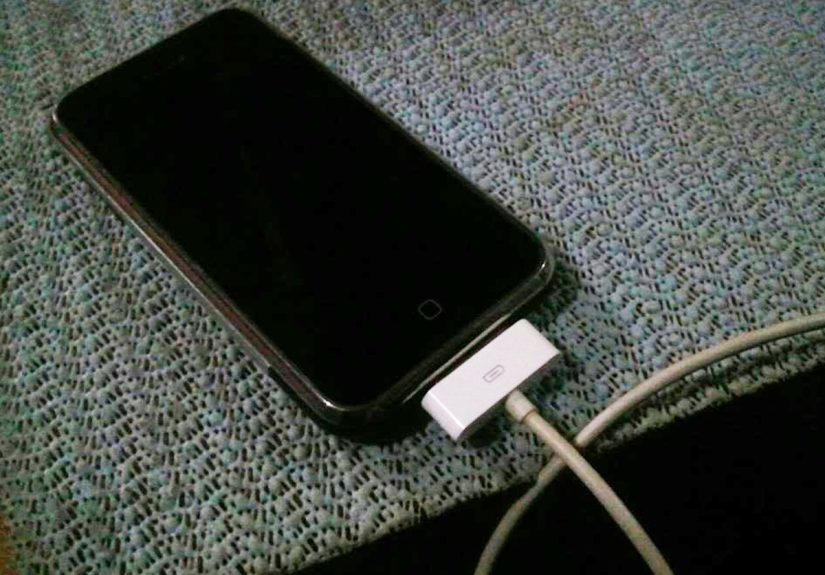
Aging 30-pin cables and picky USB ports cause endless false alarms. Try a different cable, a different port, and preferably a direct connection instead of a hub or dock. A bad cable can make a perfectly healthy iPod look doomed.
Prevent Auto-Sync Chaos
If iTunes launches automatically and interferes with troubleshooting, connect the iPod after entering Disk Mode. Some users also disable automatic syncing temporarily so the device does not get ambushed the moment it appears.
Know When It Might Be Hardware
If your iPod shows a red X, clicking drive noises, repeated reboot loops, or never gets recognized even in Disk Mode, you may be dealing with a hard-drive or cable issue rather than a software glitch. At that point, restoring may fail because the underlying storage is the real problem.
How to Exit Disk Mode Safely
Do not just yank the cable and hope for the best. Eject the iPod properly from iTunes or your operating system first. Once it is safe to disconnect, unplug it. If the device stays in Disk Mode, restart it using the normal reset combo for your model.
For a Click Wheel iPod, that usually means Menu + Center until the Apple logo appears. After rebooting, it should return to normal operation. Assuming it feels like it, of course.
Common Mistakes People Make
- Trying the Click Wheel combo on an iPod touch.
- Forgetting to toggle the Hold switch off first.
- Pressing too close to the center of the wheel and triggering the wrong input.
- Using a nearly dead battery.
- Assuming one failed try means the process is wrong.
- Thinking Disk Mode will fix mechanical hard-drive failure.
That last one matters. Disk Mode is excellent for connection and restore issues, but it is not a magic spell. If the storage hardware is failing, Disk Mode can help you diagnose the problem, not always cure it.
Final Takeaway
Putting an iPod into Disk Mode is one of those beautifully old-fashioned tech skills that still comes in handy. If you have a Click Wheel model, the classic sequence is simple once you know the timing: reset with Menu + Center, then switch to Center + Play/Pause. If you have an older pre-Click Wheel device, the combo changes, and if you have a no-wheel device like an iPod touch, you are usually looking at force restart or restore methods instead.
The big lesson is this: know your model first, then use the right procedure. The iPod family may share a name, but its troubleshooting rules are not one-size-fits-all. And honestly, that feels very on-brand for a product line that managed to give the world about a dozen different ways to listen to the same song.
Experiences and Real-World Lessons From Using iPod Disk Mode
One of the most common real-world experiences with iPod Disk Mode starts with somebody finding an old device in a drawer, charging it with heroic optimism, and then discovering it freezes the moment it connects to a modern computer. That is exactly where Disk Mode earns its reputation. A regular startup may hang on the Apple logo, while Disk Mode lets the computer finally recognize the device long enough to restore it or at least confirm that the storage still works. For many people, that first successful connection feels less like troubleshooting and more like archaeology with a USB cable.
Another frequent experience is the “I swear I did the button combo right” phase. People often need two or three tries before it works, especially on Click Wheel models. The most surprising lesson is how much finger placement matters. Pressing the center button while accidentally brushing the wheel can confuse the input. Setting the iPod flat on a desk helps. It feels a little ridiculous at first, but it works. Suddenly, the same iPod that seemed dead five minutes earlier obediently flashes the Disk Mode screen like nothing dramatic ever happened.
There is also the cable problem, which deserves its own tiny hall of fame. Plenty of iPods get blamed for issues caused by a worn-out 30-pin cable, a weak USB port, or a hub that was never excited about helping in the first place. In real use, changing the cable or switching ports solves more “dead iPod” cases than many people expect. This is especially true with older classics, where the device may actually be functional but too picky to communicate through a mediocre connection.
Then there are the owners trying to recover music libraries from ancient laptops or move an iPod collection to a newer computer. Disk Mode often shows up in those stories because it gives the device a more stable connection state during the handoff. It does not magically organize your songs or reverse years of messy file management, but it frequently creates the window you need to restore, sync, or at least see the device properly. For people preserving old media libraries, that matters a lot.
Finally, the biggest real-world lesson is that Disk Mode is a troubleshooting tool, not a promise. When it works, it can make an old iPod feel surprisingly salvageable. When it does not, that failure is useful information too, because it often points to a battery, drive, or internal cable issue. In other words, Disk Mode is not just a fix; it is also a diagnosis. And for a product that has survived years in backpacks, drawers, glove compartments, and probably one mysterious kitchen cabinet, that is honestly pretty impressive.







 Close
Close