
Table of Contents >> Show >> Hide
- What “Turning Off iCloud Mail” Actually Means (So You Don’t Accidentally Nuke Anything)
- Before You Flip the Switch: A 60-Second Checklist
- Method 1: Turn Off iCloud Mail from iCloud Settings (Fast + Clean)
- Method 2: Turn Off iCloud Mail from Mail Account Settings (Best if You Live in “Mail Accounts”)
- Method 3: Turn Off Mail Sync Without Removing Your Whole iCloud Account
- Method 4: Stop iCloud Mail Notifications (Without Turning iCloud Mail Off)
- Method 5: Reduce iCloud Mail Noise (Hide My Email, Rules, and Smart Cleanup)
- Troubleshooting: When iCloud Mail Won’t Stay Off (Or It Sneaks Back In)
- FAQ: Quick Answers to the Questions Everyone Googles at 2:00 AM
- Conclusion: The Calm-Inbox Way Forward
- Real-World Experiences & Tips From the Inbox Trenches (Extra Notes That Save You Headaches)
- 1) “I turned it off… and panicked because old emails disappeared”
- 2) “My work email and iCloud email were mixed together, and my brain couldn’t handle it”
- 3) “I didn’t want to turn it offI just wanted it to stop yelling at me”
- 4) “I turned off iCloud Mail, but spam kept coming… somewhere”
- 5) “After an iOS update, everything looked different and I thought I broke it”
Your iPhone is supposed to make life easier. But sometimes iCloud Mail shows up like that one coworker who “just has a quick question” and somehow steals your whole afternoon. Maybe you’re separating work and personal email, troubleshooting Mail glitches, or you simply want fewer inbox surprises. Whatever your reason, turning off iCloud Mail on an iPhone is totally doableand you can do it without detonating your entire Apple ecosystem.
This guide walks you through the exact steps, explains what actually changes (and what doesn’t), and shares practical tips so you can keep your sanity, your data, and your Apple Account intact.
What “Turning Off iCloud Mail” Actually Means (So You Don’t Accidentally Nuke Anything)
The phrase “turn off iCloud Mail” can mean a few different things, and Apple’s menus don’t always speak plain English. Here are the most common goals people have:
Option A: Stop iCloud Mail from appearing in the Mail app (most common)
This turns off iCloud Mail on that iPhone. Your iCloud email still exists, and messages can still arrive on the server. You’re just telling your iPhone: “Don’t pull this inbox into the Mail app anymore.”
Option B: Stop mail notifications but keep the mailbox active
Great if you still want access, but you don’t want your Lock Screen to look like a slot machine of new email alerts.
Option C: Sign out of your Apple Account (the “full reset” approach)
This affects far more than Mailthink iCloud backups, Photos sync, Find My, and lots of other services. Use only if you truly want to disconnect the device from the Apple Account.
Option D: Stop a specific “Hide My Email” address from forwarding
This doesn’t turn off iCloud Mail, but it can dramatically reduce spam by deactivating a single forwarding address that’s been “discovered” by the internet’s raccoons.
Before You Flip the Switch: A 60-Second Checklist
Do these quick checks first. You’ll avoid the most common “Waitwhere did my email go?!” moment.
1) Know your goal
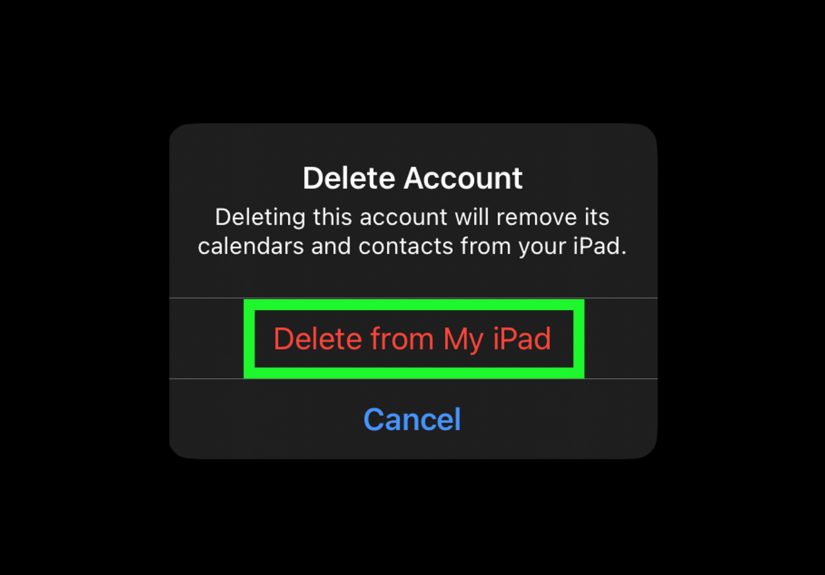
- Just remove iCloud Mail from the Mail app? Use the “Use on this iPhone” toggle.
- Stop alerts only? Change notification settings (no need to disable the account).
- Stop spam from one source? Consider rules or Hide My Email controls.
2) Make sure you can still receive important Apple messages
Some Apple services use the email addresses on your Apple Account for receipts, sign-in messages, and account recovery. Turning off iCloud Mail on your iPhone doesn’t usually remove your Apple Account email, but it’s smart to confirm you have access to a reliable inbox.
3) Understand what happens to existing email on the iPhone
When you disable iCloud Mail on the device, the Mail app may remove iCloud messages from the phone to save space (depending on your settings). Your mail typically remains available on iCloud.com and other devices still using that account.
Method 1: Turn Off iCloud Mail from iCloud Settings (Fast + Clean)
This is the most direct path if you want to disable iCloud Mail on the iPhone without messing with other accounts.
- Open Settings.
- Tap your name at the top (your Apple Account / Apple ID banner).
- Tap iCloud.
- Tap Mail (or iCloud Mail, depending on iOS version).
- Turn off Use on this iPhone.
What you should expect after toggling it off
- Your iCloud inbox should disappear from the Mail app (or stop updating).
- You can still access iCloud Mail via a browser at iCloud.com if you need it.
- Your Apple Account stays signed in; this is not the same as signing out.
Pro tip: If you’re doing this to troubleshoot glitches (Mail freezing, blank inbox, nonstop syncing), restart your iPhone after turning it off. Then decide whether to turn it back on once things calm down.
Method 2: Turn Off iCloud Mail from Mail Account Settings (Best if You Live in “Mail Accounts”)
Apple has been reorganizing Settings in newer iOS versions, so you may see slightly different labels. One common route looks like this:
- Open Settings.
- Tap Apps.
- Tap Mail.
- Tap Mail Accounts.
- Tap iCloud.
- Tap iCloud Mail.
- Turn off Use on this iPhone.
If you don’t see “Apps”
On some iOS versions, the path may look more like Settings > Mail > Accounts (or Settings > Mail > Mail Accounts). Different iOS builds, same basic idea: get to your iCloud mail account and toggle off Use on this iPhone.
Method 3: Turn Off Mail Sync Without Removing Your Whole iCloud Account
Many people worry that turning off iCloud Mail will kick them out of iCloud entirely. Good news: it doesn’t have to.
For iCloud Mail specifically
Use the Use on this iPhone toggle. That disables iCloud Mail on your device while leaving other iCloud services (Photos, Contacts, Notes, backups) alone.
For Gmail, Outlook, Yahoo, or other email accounts
You’ll often see two choices:
- Turn off Mail (keeps the account for other items like Contacts/Calendars, if enabled)
- Delete Account (removes it from the iPhone entirely)
If your goal is “I want iCloud Contacts, but not iCloud Mail,” you’re in the right neighborhood. Turn off iCloud Mail only, and leave the rest alone.
Method 4: Stop iCloud Mail Notifications (Without Turning iCloud Mail Off)
Sometimes the mailbox is fine. It’s the constant ding and badge count that’s not fine. If you want peace but still want to check email manually, try this approach.
Step-by-step: disable Mail notifications
- Open Settings.
- Tap Notifications.
- Tap Mail.
- Turn off Allow Notifications (or customize alerts, badges, and sounds).
Extra calm: use Focus modes
If you need email sometimes (but not during dinner, workouts, meetings, naps, or your personal “don’t talk to me” hour), set up a Focus mode that silences Mail notifications. This gives you control without disabling the account.
Method 5: Reduce iCloud Mail Noise (Hide My Email, Rules, and Smart Cleanup)
If you’re turning off iCloud Mail because the inbox feels like a landfill, you may not need the “off” switchyou may need a broom.
Deactivate a “Hide My Email” address (stops forwarding from that address)
If one specific sign-up address is getting hammered by spam, deactivate that Hide My Email address. Messages sent to it will stop forwarding to you, while your real inbox stays private.
- Open Settings > tap your name > iCloud.
- Tap Hide My Email.
- Select the address you want to stop using.
- Choose the option to Deactivate it.
Use iCloud.com Mail rules to auto-file or trash messages
For “I’m done with this newsletter forever” situations, rules can automatically move specific messages to Trash or a folder. It’s like hiring a bouncer for your inbox.
Try built-in cleanup/unsubscribe recommendations (when available)
Newer iOS versions may surface Mail cleanup features that help you unsubscribe or manage promotions and updates more efficiently. If you see it in iCloud Mail settings, it’s worth a look.
Troubleshooting: When iCloud Mail Won’t Stay Off (Or It Sneaks Back In)
“I turned it off, but the iCloud inbox is still there”
- Close the Mail app completely and reopen it.
- Restart the iPhone (classic, but effective).
- Recheck the toggle: sometimes there are two nearby settings screens and the switch didn’t actually flip.
“It turned back on after an update”
Major iOS updates can reshuffle settings screens and occasionally re-enable services. After an update, revisit the iCloud Mail setting and confirm Use on this iPhone is still off.
“I can’t send from iCloud anymore”
That’s expected if you turned off iCloud Mail on the device. You can still send from iCloud Mail using iCloud.com (web) or by turning the toggle back on.
“I still want email on my phonejust not in Apple Mail”
Consider switching to a third-party mail app (Gmail, Outlook, Spark, etc.). Turning off iCloud Mail in Apple Mail reduces clutter, and you can choose a different app to handle your primary inbox experience.
FAQ: Quick Answers to the Questions Everyone Googles at 2:00 AM
Does turning off iCloud Mail delete my iCloud email address?
No. Turning off iCloud Mail on your iPhone typically just disables it on that device. The address still exists, and mail can still arrive on the server.
Will I stop receiving iCloud emails everywhere?
Not unless you take additional steps. Turning it off on the iPhone generally affects only that iPhone. Other devices (Mac, iPad) using iCloud Mail can still receive messages.
Can I still use iMessage and FaceTime?
In most cases, yes. Those services are tied to your Apple Account sign-in and reachable email/phone settings, not whether iCloud Mail is enabled inside the Mail app.
How do I turn iCloud Mail back on?
Go back to the same setting and toggle Use on this iPhone on again. Then open Mail and give it a minute to resync.
What if I actually want to change my Apple Account primary email?
That’s a different setting from iCloud Mail sync. Newer iOS versions include options to manage your Apple Account email addresses under Sign-In & Security settings. If your goal is “stop using this email for my Apple Account,” don’t confuse it with “stop syncing iCloud Mail to the phone.”
Conclusion: The Calm-Inbox Way Forward
Turning off iCloud Mail on an iPhone doesn’t have to be dramatic. Most of the time, you just want to remove the iCloud inbox from the Mail app or stop it from syncing on that device. That’s exactly what the Use on this iPhone toggle is for.
If your real problem is interruptions, notifications settings can give you immediate relief. And if your inbox is getting pummeled by spam, tools like Hide My Email and mail rules can solve the root cause instead of turning off the entire service.
Bottom line: pick the method that matches your goal, and your iPhone will stop acting like iCloud Mail is the boss of your day.
Real-World Experiences & Tips From the Inbox Trenches (Extra Notes That Save You Headaches)
Below are common “been there” scenarios users run into when they try to disable iCloud Mailand how to handle them like a pro. Think of this as the part of the guide you wish popped up as a warning label right before you tapped a toggle.
1) “I turned it off… and panicked because old emails disappeared”
This is one of the most common reactions: you disable iCloud Mail on the iPhone and suddenly the iCloud mailbox looks empty or vanishes from the Mail app. That doesn’t necessarily mean the emails are gone foreverit usually means the phone is no longer downloading or displaying that account.
If you want to double-check, log into iCloud Mail from a browser and confirm the messages are still on the server. That quick verification instantly separates “display change” from “data loss.” Once you see the mail still exists elsewhere, your blood pressure returns to normal and your coffee tastes like coffee again.
2) “My work email and iCloud email were mixed together, and my brain couldn’t handle it”
Many people start with one clean ideause the iPhone Mail app for everythingand end up with a chaotic inbox soup: work messages, receipts, family threads, and random password reset emails all piled into one “All Inboxes” view. Turning off iCloud Mail on the device is a legit strategy if you want the Mail app to be strictly “work only.”
A less drastic alternative is to keep iCloud Mail enabled but turn off “All Inboxes” usage by focusing on a single mailbox, or use a separate mail app for personal email. The best setup is the one that prevents you from accidentally replying “Sounds great, boss!” to your aunt’s birthday plan.
3) “I didn’t want to turn it offI just wanted it to stop yelling at me”
If your issue is nonstop notifications, disabling iCloud Mail can feel like using a sledgehammer to swat a fly. Instead, silence Mail notifications and choose when you check messages. This is especially helpful if you’re already managing Focus modes for sleep, workouts, deep work, or “please don’t perceive me” hours.
Bonus tip: if you rely on certain emails (like travel boarding passes or security alerts), allow notifications only from VIP contacts or critical senders, and keep everything else quiet. Your iPhone becomes helpful again instead of needy.
4) “I turned off iCloud Mail, but spam kept coming… somewhere”
Turning off iCloud Mail on the iPhone stops it from showing up on that phonebut it doesn’t stop messages from arriving to the address itself. So if your goal is “make it stop,” you’ll want to tackle the source:
- Deactivate a Hide My Email address that’s being abused.
- Create rules to auto-trash specific senders or subjects.
- Unsubscribe when it’s legitimate (and block/filter when it’s not).
This approach works better long-term than “turn it off and hope the internet forgets you exist.” (Spoiler: the internet does not forget.)
5) “After an iOS update, everything looked different and I thought I broke it”
You didn’t break it. Apple just loves reorganizing Settings like it’s rearranging furniture at 2 a.m. The best move is to use Settings search: pull down on the Settings screen and type “Mail,” “iCloud Mail,” or “Accounts.” You’ll usually land right where you need to be, even if the menus have been renamed or relocated.
The biggest lesson from real-world use: choose the smallest change that solves your actual problem. You’ll get the outcome you wantwithout accidentally turning your iPhone into a “why is nothing syncing?” mystery novel.




 Close
Close